ProPresenter performance settings for smooth playback
Codec choice, bitrate, storage and system settings that stop video stuttering, plus a diagnostic order that finds the real bottleneck fast.
Read the guideInstall failures, missing media, black outputs, watermarks, audio routing and launch crashes, with a practical diagnostic order for each.
These are common problems teams can encounter. Each section starts with a low-risk check that is quick to reverse, then moves toward more involved troubleshooting.
Start here: re-download from the official page, confirm the installer is for the correct operating system, and review the publisher/signature and the operating system's security message before changing any protection setting.
A truncated download can look like a corrupted installer. Re-download from the official source before changing system settings. Security software can also quarantine installers, so check its history if the file disappears after downloading.
Start here: restart the machine, then launch again before opening any other application.
If it still crashes, confirm the ProPresenter release is compatible with the operating system, collect any crash information the system provides, and back up your ProPresenter data before attempting a reinstall or reset. Renewed Vision's support center is the safest source for version-specific crash steps because preference and support-file locations can change.
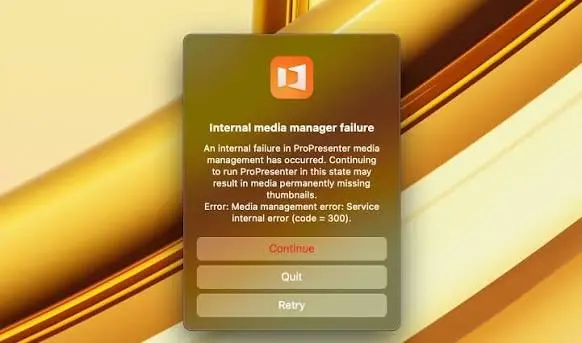
Start here: check whether the missing media was moved, renamed or disconnected, then re-link it to the correct location.
Renewed Vision explains that ProPresenter can reference a media file by path rather than embedding the file itself. Its Manage Media Automatically setting can copy imported media into the managed media location, and alternate search paths can help re-link missing files. For computer moves, use the documented Sync/export workflow instead of moving a presentation without its media.
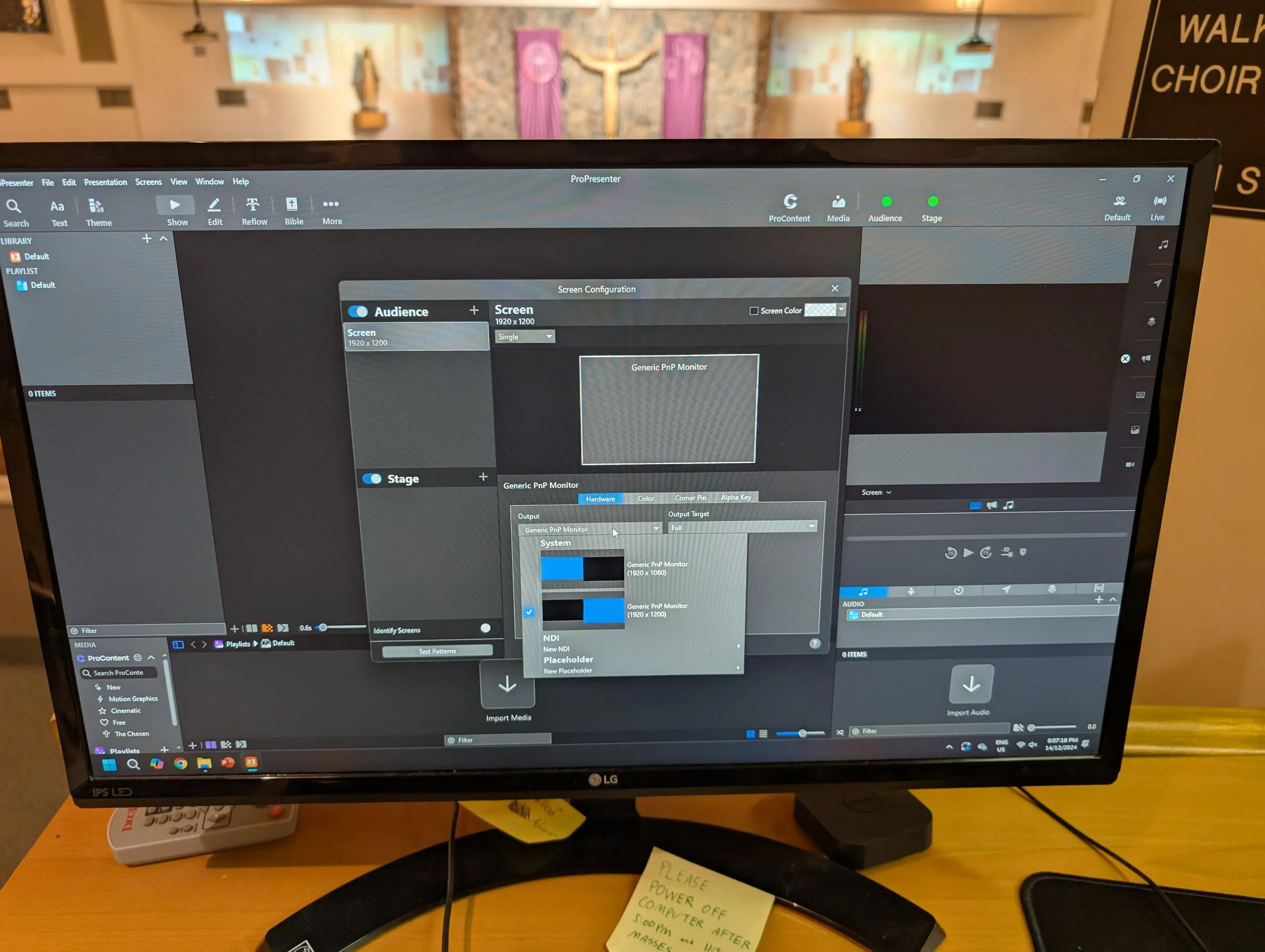
Start here: set displays to extended rather than mirrored, then re-select the output in screen configuration.
If the screen was working and stopped, check whether the operating system still detects the physical display, then verify the selected ProPresenter output, cable/adapter chain and display input. There is more detail in our multi-screen setup guide.
Start here: the copy is unlicensed on this machine. Activate it, restart the application and check the output again.
This catches teams out after a reinstall or a hardware change, because the licence is tied to the installation. Verify activation midweek after any change rather than discovering it as people arrive. See our licence guide for what the free version does and does not allow.
Start here: check the audio output device selected inside the application, which is separate from the system output.
ProPresenter has its own audio routing controls, including routing to a primary output device and SDI/NDI feeds. Verify the selected device and channel routing inside ProPresenter, then check the downstream mixer, interface or switcher.
Start here: re-encode the clip to a standard delivery codec at a sensible bitrate and play it from internal storage.
Our performance guide works through this in a diagnostic order that finds the cause quickly.
Start here: confirm the translation is installed on this machine and that the machine has internet access if the translation requires it.
Bible availability can vary by translation, licensing and installation/account state. If a translation you expect is missing, use Renewed Vision's Bible/account documentation or support rather than assuming the content should transfer automatically.
If the problem is licensing, activation, account access or a reproducible software fault, Renewed Vision support is the right destination. Include your operating system version, ProPresenter version, exact reproduction steps and any crash/error text you have collected so support can work from evidence rather than guesswork.
Facts that can change with ProPresenter releases are checked against the vendor's current documentation.
Last source review: 29 September 2026. Practical recommendations on this page are editorial guidance, not official hardware or support guarantees.
Head to the download section for the official macOS and Windows release.
Three more walkthroughs from the ProPresenter guide library.
Codec choice, bitrate, storage and system settings that stop video stuttering, plus a diagnostic order that finds the real bottleneck fast.
Read the guideAudience screens, stage displays and extra outputs: how to configure them, what resolutions to set, and how to test the whole chain before an event.
Read the guideA step-by-step walkthrough of the official download, both installers, first-launch permissions and the checks worth doing before your first service.
Read the guide