
ProPresenter system requirements for Mac and Windows
The current minimum specification, what the numbers actually mean for multi-screen work, and how to size a machine for 4K output.
Read the guideA current step-by-step installation guide for macOS and Windows, including permissions, subscription sign-in, legacy activation and output checks.
Downloading ProPresenter is straightforward. The part worth doing carefully is preparing the production machine, signing in or activating the correct seat, granting the required permissions and testing the real output chain before an audience is in the room. This guide covers the current ProPresenter release for macOS and Windows. The page keeps its older URL so existing bookmarks and search links continue to work.
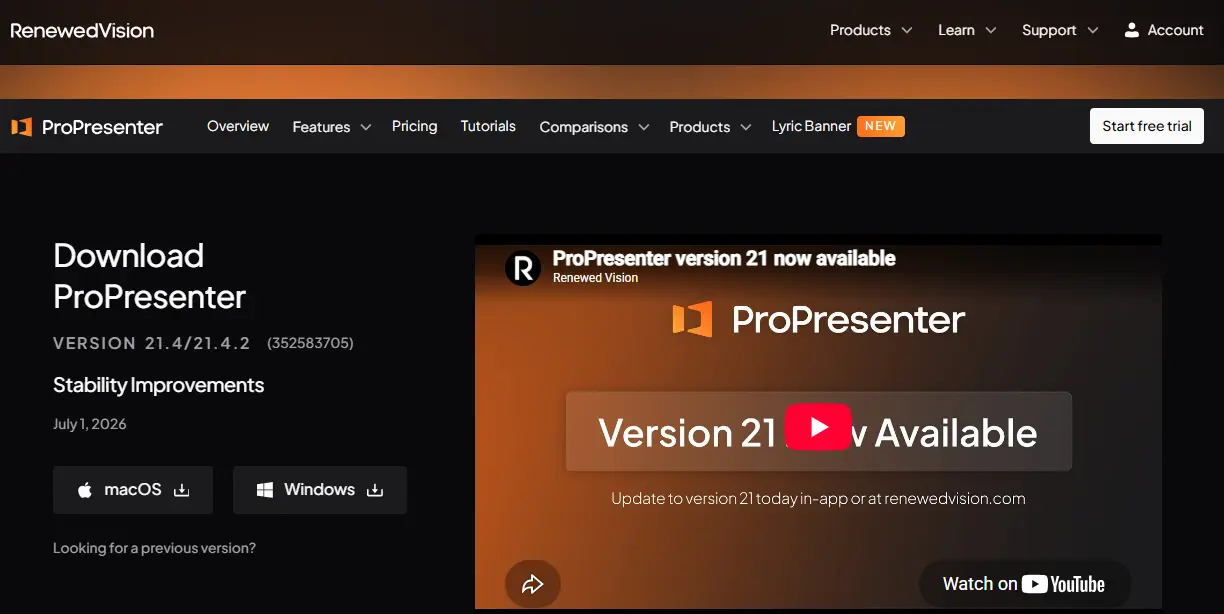
Use the official Renewed Vision download page. It lists the current macOS and Windows builds and also provides access to previous versions when a legacy workflow genuinely requires one. Avoid mirror sites, repackaged installers and unofficial cracks.
On macOS, ProPresenter may request Camera and Microphone access when certain video inputs are used; other operating-system prompts depend on the hardware and features you configure. Windows may also request device or firewall access for relevant workflows. Grant only the permissions you understand and need, then follow the operating-system or vendor instructions if a feature remains unavailable.
For a current ProPresenter subscription, open ProPresenter → Settings → Account → Sign In, authenticate with the Renewed Vision account associated with your organization and select an available subscription seat. Legacy perpetual licences use the older registration workflow instead. If you are evaluating the software, Renewed Vision also offers a 14-day fully registered trial with no output watermark.
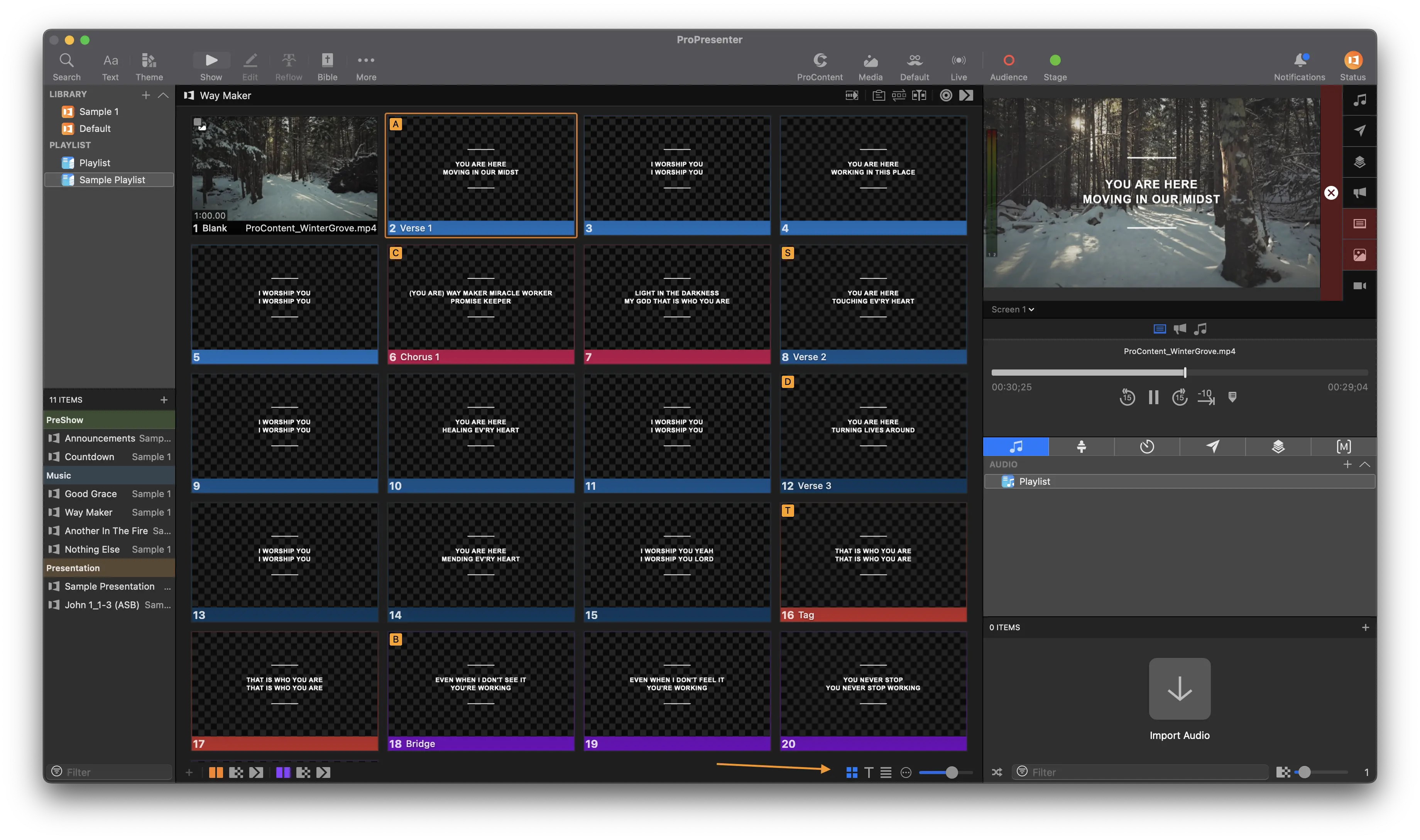
Set the operating system to extend the desktop, then assign the audience and stage outputs inside ProPresenter. Import a few representative songs, images and videos and test them on the actual projector, LED processor, capture card or streaming chain you will use live.
Download it again from Renewed Vision, confirm you selected the correct operating system, verify the publisher/signature and check the operating system security message. Do not solve a blocked installer by downloading a different copy from an unofficial site.
Make sure the operating system is using an extended desktop rather than mirroring displays, then select the correct physical output in ProPresenter's screen configuration.
A watermark usually means the machine is not currently authorized for clean output. For subscription users, confirm you are signed in and that an active seat is assigned to this computer. For a legacy licence, confirm registration is still active. If you are testing, request the official 14-day trial rather than relying on watermarked output for a live event.
Do not update a production machine immediately before a service. Read the release notes, back up the working configuration, update during a quiet window and run a full rehearsal afterward. For hardware sizing, use our system requirements guide.
Facts that can change with ProPresenter releases are checked against the vendor's current documentation.
Last source review: 29 September 2026. Practical recommendations on this page are editorial guidance, not official hardware or support guarantees.
Head to the download section for the official macOS and Windows release.
Three more walkthroughs from the ProPresenter guide library.
The current minimum specification, what the numbers actually mean for multi-screen work, and how to size a machine for 4K output.
Read the guideHow the watermarked mode, 14-day trial, subscriptions, seats and legacy licences differ for current ProPresenter users.
Read the guideInstall failures, missing media, black outputs, watermarks, audio routing and launch crashes, with a practical diagnostic order for each.
Read the guide