ProPresenter system requirements for Mac and Windows
The current minimum specification, what the numbers actually mean for multi-screen work, and how to size a machine for 4K output.
Read the guideAudience screens, stage displays and extra outputs: how to configure them, what resolutions to set, and how to test the whole chain before an event.

Multi-screen output is one of ProPresenter’s defining workflows, and it is also where setup mistakes can become visible quickly. This guide follows a diagnostic order so the operating system, ProPresenter and physical signal chain are checked separately.
For physical system-connected displays, start by making sure the operating system sees and arranges them correctly. ProPresenter can also create non-system outputs such as NDI, supported SDI hardware, Syphon on macOS and placeholders.
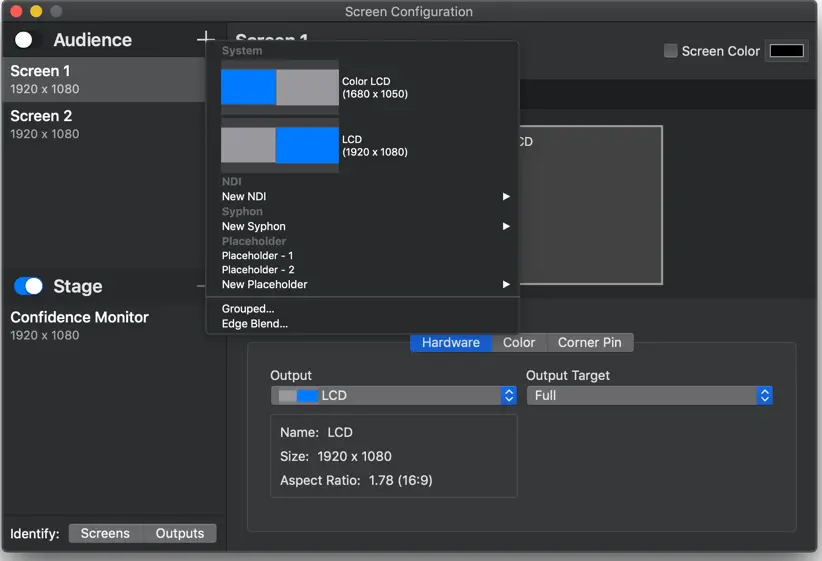
Open Screens → Configure Screens. Renewed Vision separates crowd-facing Audience screens from Stage screens, and the output menu can include system displays, NDI, supported SDI hardware, Syphon on macOS and placeholders.
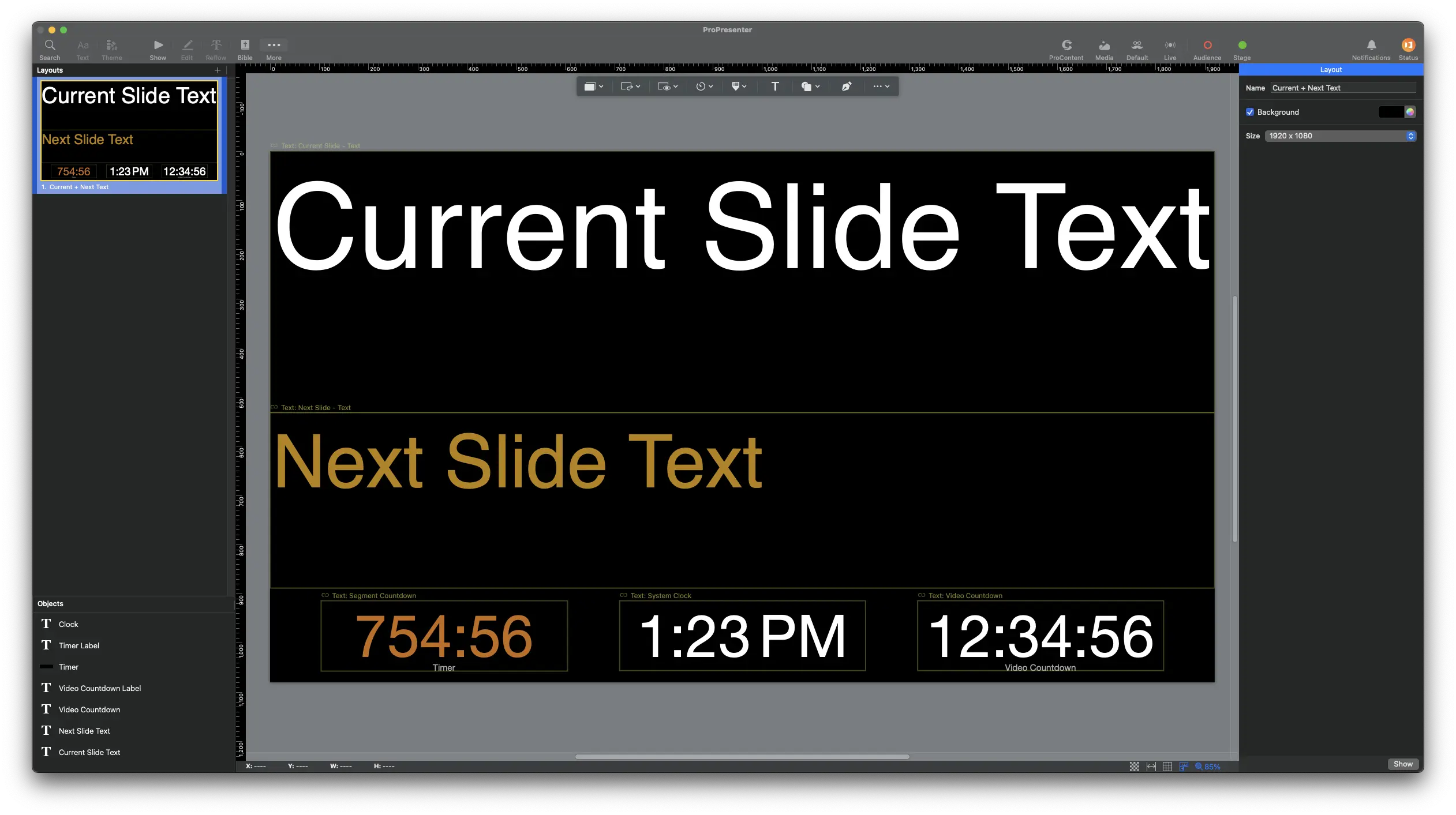
Musicians read at a glance while playing. Big current lyric, smaller next lyric, a clock, and a message line. Anything else is noise. Go and stand where they stand before you sign it off.
Physical signal paths can fail independently of ProPresenter. If a system-connected screen drops out or loses signal, check the cable, adapter, converter, display input and operating-system detection before changing presentation content.
This is a hardware limit, not a software one. On Apple silicon Macs the number of supported external displays varies significantly by chip, and base models support fewer than Pro or Max variants. On Windows it depends on your GPU and its outputs. Check the specification of your exact model before promising a third screen. Our system requirements guide covers this in more detail.
ProPresenter can use system outputs, NDI, supported SDI hardware and Syphon on macOS. If an NDI path is missing or unstable, Renewed Vision recommends checking NDI version compatibility, network discovery/subnet configuration and using NDI Studio Monitor or Video Monitor to isolate whether the issue is in ProPresenter, the receiving application or the network. For a network bottleneck, the vendor recommends a dedicated hardwired gigabit network.
Document the exact working screen assignments, resolutions and signal path after the rehearsal. That gives the next operator a known-good baseline if something changes later.
Facts that can change with ProPresenter releases are checked against the vendor's current documentation.
Last source review: 29 September 2026. Practical recommendations on this page are editorial guidance, not official hardware or support guarantees.
Head to the download section for the official macOS and Windows release.
Three more walkthroughs from the ProPresenter guide library.
The current minimum specification, what the numbers actually mean for multi-screen work, and how to size a machine for 4K output.
Read the guideCodec choice, bitrate, storage and system settings that stop video stuttering, plus a diagnostic order that finds the real bottleneck fast.
Read the guideLibrary structure, song and scripture workflow, stage display layouts and the volunteer training approach that makes a Sunday run itself.
Read the guide