
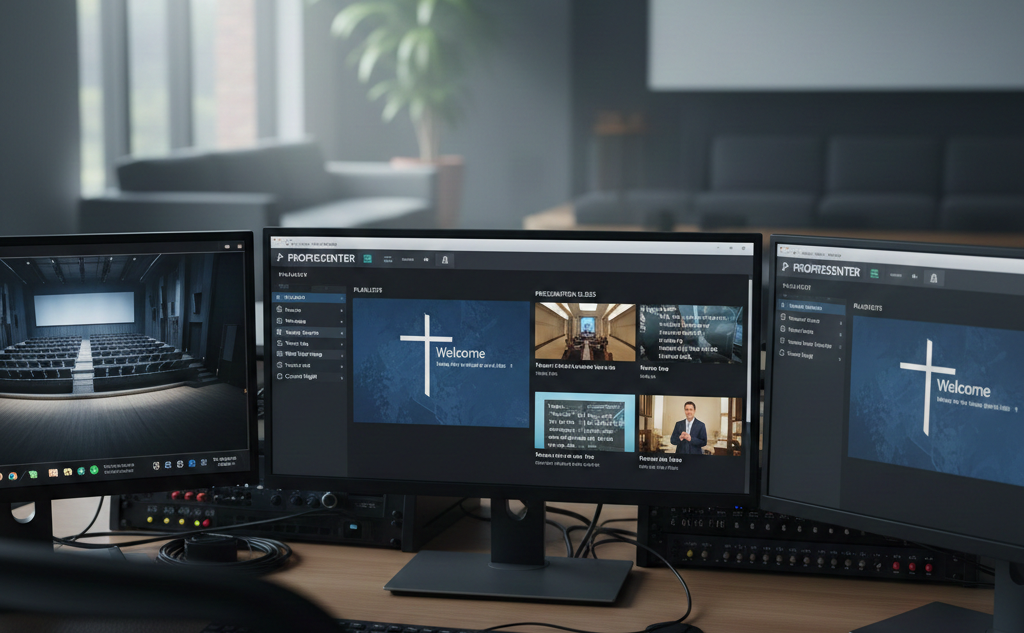
ProPresenter has become one of the leading software solutions for live presentations, widely used in houses of worship, corporate events, concerts, and education environments. At its core, ProPresenter is designed to manage and deliver multimedia content seamlessly in live settings where timing, flexibility, and reliability are paramount. Understanding how ProPresenter handles presentations and playlists is essential for anyone tasked with running live production software from beginners looking to get started, to experienced operators aiming to refine their workflow.
In this comprehensive article, we’ll explore how ProPresenter structures and displays presentations and playlists, how these elements interact, how to use them effectively, and tips to optimize workflow for live environments. By the end, you will have a deep understanding of ProPresenter’s capabilities and best practices for managing your content.
What Are Presentations and Playlists in ProPresenter?
Defining Presentations
In ProPresenter, a presentation is a collection of slides that contain media, text, or cues that are played back in sequence or manually triggered during a live event. Think of a presentation as a container — much like a PowerPoint file — that holds all of the individual pieces (slides) you want to show for a specific set of content.
Presentations are highly versatile. They can include song lyrics, sermon notes, scripture slides, videos, countdown timers, and background media. Each slide can be layered with different media elements and has customizable transitions, making ProPresenter robust and flexible for a variety of use cases.
Defining Playlists
A playlist, on the other hand, is a sequence of presentations arranged for playback in a specific order. Playlists serve as the show flow — the roadmap for your event. Rather than playing one presentation and then manually loading the next, playlists allow you to organize multiple presentations into a logical sequence that can be triggered during a live event.
Playlists are especially useful for multi-part events like Sunday services, conferences, or multi-segment meetings. They streamline the process by allowing operators to queue content in advance and run through a set order efficiently.
How Presentations Work in ProPresenter
Creating and Organizing Slides
Creating a presentation in ProPresenter begins with adding slides. Each slide can contain:
- Text fields for lyrics, titles, or bullet points
- Background media such as images or video loops
- Foreground media like logos or accent graphics
- Cues for lighting integration or external devices
Slides can be reordered at any time, and elements are layered to give total control over how content appears on screen.
ProPresenter supports multiple layers within a single slide — for example, a background video layer with a text layer on top. This layered approach enables complex visual presentations without needing multiple applications.
Transitions and Timing
Transitions between slides can be set to occur manually or automatically based on timing. Automatic transitions are especially useful for timed elements like countdowns or auto-advancing lyric slides during worship sets where the exact timing is predetermined.
Different transition effects (fade, cut, slide, etc.) help create a professional look and feel. You can also configure transition durations to suit the pacing of your presentation.
Media Playback
ProPresenter supports a wide variety of media formats, including high-definition video. Videos can be embedded directly into slides or referenced externally to conserve file size. When a video is part of a slide, the operator can choose whether the slide auto-advances after the video finishes or waits for manual input.
This flexibility means that ProPresenter can handle anything from a quick announcement video to a full-length sermon clip without switching applications.
Slide Notes and Multi-Screen Output
One of ProPresenter’s powerful features is the ability to present different content on different outputs:
- Main output for the audience
- Stage display for presenters
- Confidence monitor for operators
Each output can show customized content. For example, a stage display might show the current slide and next slide cues, while the audience sees only the main visuals.
Slide notes and timer overlays help presenters stay on track without displaying this information to the audience.
How Playlists Work in ProPresenter
Building a Playlist
Playlists in ProPresenter are like a playlist in a music app, except instead of songs, you add presentations. You can build playlists manually by dragging presentations into the desired order.
Playlists are ideal for structuring multi-part events. For example, a Sunday service playlist might include:
- Welcome video
- Worship set (presentation with song lyrics)
- Announcements
- Sermon slides
- Offering video
- Closing song
By pre-building this order, an operator can run the entire service without needing to load individual presentations manually.
Playlist Items and Sections
Each playlist item represents a presentation or standalone media item (like a video). Playlists can also include sections — groups of items that can be collapsed or expanded. This is useful for organizing content into logical groupings such as “Music,” “Teaching,” or “Announcements.”
Sections make navigating large playlists easier, especially during live events where rapid changes may be required.
Looping and Auto-Advance
Playlists can be configured to loop through items, which is particularly helpful for events with repetitive structures like weekly services. You can also set auto-advance behavior to move automatically to the next item after a preset time or after media playback has completed.
For example, a playlist item with a video could automatically advance once the video finishes, saving the operator from having to trigger the next step manually.
Working with Multiple Playlists
ProPresenter allows for multiple playlists within a document — you might have one playlist for each service type (e.g., Sunday morning, evening worship, midweek service) or for different departments within an organization.
Switching between playlists is straightforward, and operators can duplicate playlists or presentations to build new workflows efficiently.
Advanced Controls: Combining Presentations and Playlists
Using Cues and Scripted Actions
Playlists become more powerful when combined with cues and scripted actions. Cues allow ProPresenter to trigger multiple actions from a single click — for example:
- Advance to the next slide
- Change the background media
- Trigger a lighting command
Scripted actions can automate repetitive tasks, keeping the live production flow smooth and predictable.
Dynamic Updates
One of ProPresenter’s strengths is its ability to handle dynamic updates. Suppose a last-minute change is required — perhaps a speaker needs to add a slide or reorder content. Because presentations and playlists are organized within the same interface, these modifications can be made quickly without disrupting the flow of the event.
ProPresenter also supports shared playlists and presentations, enabling teams to collaborate and update content in real time, especially when used in conjunction with ProPresenter Cloud services.
ProPresenter in Live Environments: Real-World Use Cases
Houses of Worship
In worship settings, ProPresenter is often used to display lyrics, scripture references, and sermon notes. Playlists typically mirror the structure of a service, and presentations hold the specific slides needed for each segment.
Because worship events often follow a predictable pattern, playlists can be reused from week to week with minor adjustments. This saves prep time and ensures consistency.
Conferences and Corporate Events
Conferences and corporate events often require more complex multimedia playback. Presentations may include embedded video testimonials, keynote speaker slides, and live polls. Playlists ensure that transitions between segments are smooth and pre-planned.
Operators can schedule presentations to play at specific times or trigger them manually as speakers transition on stage.
Educational Settings
In educational environments, ProPresenter is used for lectures, assemblies, and ceremonies. Presentations might contain lecture slides, embedded quizzes, or video explanations. Playlists can sequence multiple lectures or segments within a larger event.
Educators appreciate the ease with which ProPresenter handles mixed media content and the ability to sequence materials logically.
Tips for Optimizing Presentations and Playlists in ProPresenter
Organize with Clear Naming Conventions
One of the simplest ways to avoid confusion during an event is to name presentations and playlist items clearly. Use descriptive titles like “Worship Set – Week 12,” “Announcements Jan 4,” or “Keynote – Intro Video” to ensure operators can find and select content quickly.
Consistent naming conventions pay dividends when multiple team members are building or running content.
Use Templates for Consistency
ProPresenter supports presentation templates. Templates ensure consistency across slideshows — for example, using the same font styles, background colors, or branding elements.
Templates save time during content creation and help maintain a cohesive visual identity.
Test Your Playlists Before Going Live
Before any live event, it’s best practice to run through your playlist from start to finish. This helps catch issues such as:
- Missing media
- Incorrect slide orders
- Playback timing errors
Testing helps reduce surprises and builds confidence in your production setup.
Leverage Hotkeys and Control Surfaces
ProPresenter supports custom hotkeys and external control surfaces. These can dramatically speed up live operation, particularly in environments where mouse and keyboard control are less practical.
Assign common actions — like advancing slides, pausing media, or clearing screens — to hotkeys or physical buttons on control panels.
Integrating ProPresenter with Other Systems
Audio and Lighting Synchronization
For large productions, integration between ProPresenter and audio/lighting systems enhances the audience experience. ProPresenter can trigger lighting cues or send signals to audio consoles, ensuring that visuals, lighting changes, and sound transitions occur in harmony.
These integrations often use network protocols or dedicated hardware interfaces.
Live Video Inputs
ProPresenter can take live video inputs (such as camera feeds) and integrate them into presentations. Live sources can be displayed on main screens or used as backgrounds for slides. This capability turns ProPresenter into a hybrid presentation and live video switching platform.
Live video support is particularly effective in worship services and concerts, where cutting between slides and live feeds keeps visuals engaging.
Remote Control and Collaboration
Modern versions of ProPresenter support remote control via mobile apps and cloud collaboration tools. Remote control lets team members trigger content from tablets or phones, while cloud collaboration enables content creation and editing across distributed teams.
This is especially valuable for organizations with volunteer teams or remote contributors.
Common Challenges and How to Address Them
Slide Sync Issues
Sometimes, operators may encounter synchronization issues where slides do not advance as expected. This often results from timing settings or improperly configured transitions. Ensuring that slides are set to the correct mode — manual vs. automatic — will resolve most synchronization problems.
Media Playback Stuttering
High-resolution videos can sometimes stutter if the computer’s hardware is taxed. To avoid this, ensure that:
- Media files are properly encoded
- Your system meets ProPresenter’s recommended hardware requirements
- Background processes are minimized during playback
Optimizing media formats and system performance helps maintain smooth playback.
Last-Minute Changes
Live events are notorious for last-minute adjustments. ProPresenter’s flexibility allows operators to make quick edits, but it’s important to communicate changes with your team and re-test affected sections of the playlist.
Using shared playlists and cloud services can also help distribute updates quickly.
Recent Trends in Presentation Management
Cloud-Based Collaboration
Cloud integration is transforming how production teams work. ProPresenter’s cloud features allow teams to update presentations in real time, share assets across locations, and ensure everyone is working with the latest versions.
Cloud workflows are particularly helpful for organizations with multiple campuses or event locations.
Mobile Control
Mobile apps now enable directors, pastors, or presenters to control ProPresenter remotely. Mobile control improves flexibility on stage and reduces reliance on a single operator at the computer.
Mobile control also supports distributed teams — for example, a sound tech and a lighting tech can each trigger cues from their devices.
Enhanced Video Support
As high-definition and 4K content become more common, presentation software has evolved to support these formats smoothly. ProPresenter’s ongoing development ensures support for modern codecs, higher resolutions, and more efficient media playback.
These enhancements broaden what is possible within a single presentation timeline.
Frequently Asked Questions
What is the difference between a presentation and a playlist in ProPresenter?
A presentation in ProPresenter is a single collection of slides, such as song lyrics, sermon slides, or announcement graphics. A playlist is a sequence of multiple presentations arranged in a specific order for a live event. In simple terms, presentations are the building blocks, while playlists define the overall flow of a service or show.
Can one presentation be used in multiple playlists?
Yes, ProPresenter allows the same presentation to be added to multiple playlists without duplication. This is particularly useful for recurring content like worship songs, announcement slides, or sermon templates, as updates to the presentation can be reused across different events.
Does ProPresenter automatically advance through playlists?
ProPresenter supports both manual and automatic advancement. You can configure individual slides or playlist items to auto-advance based on timers or media playback completion. However, many live operators prefer manual control for flexibility during real-time events.
How does ProPresenter handle last-minute changes to playlists?
ProPresenter is designed for live flexibility. Operators can quickly reorder playlist items, add or remove presentations, or edit slides even moments before going live. These changes take effect immediately, making it easier to adapt to schedule changes or speaker requests.
Can I add videos directly to a playlist without creating a presentation?
Yes, ProPresenter allows standalone media files, such as videos or images, to be added directly to playlists. This is useful for intro videos, bumper clips, or transitions that don’t require a full slide-based presentation.
How are stage displays different from main presentation outputs?
The main presentation output is what the audience sees, while the stage display is designed for presenters and musicians. Stage displays can show current and next slides, timers, notes, and cues without exposing this information to the audience, helping presenters stay on track.
Are playlists reusable for weekly services or recurring events?
Absolutely. Playlists can be duplicated and reused as templates for weekly or recurring events. Many organizations create standard playlists for different service types and simply update individual presentations each week.
Does ProPresenter support collaborative playlist management?
With ProPresenter’s cloud and network features, teams can collaborate on presentations and playlists across multiple computers or locations. This allows content creators, designers, and operators to work together more efficiently.
What happens if a media file is missing from a presentation or playlist?
If a media file is missing, ProPresenter will alert the operator and typically display a placeholder. To avoid this, it’s best to use ProPresenter’s media management tools to ensure all files are properly linked and stored before the event.
Is ProPresenter suitable for beginners managing playlists for the first time?
Yes, ProPresenter is beginner-friendly while still offering advanced features for experienced users. New users can start with basic presentations and simple playlists, then gradually explore more advanced tools like cues, automation, and multi-screen outputs as they gain confidence.
Conclusion
ProPresenter’s handling of presentations and playlists is a cornerstone of its power as live production software. By structuring content into presentations and sequencing those with playlists, operators gain precise control over what appears on screen and when. Whether you are running a weekly worship service, a corporate conference, or a lecture series, understanding how to create, organize, and manage presentations and playlists is essential for a polished production.