
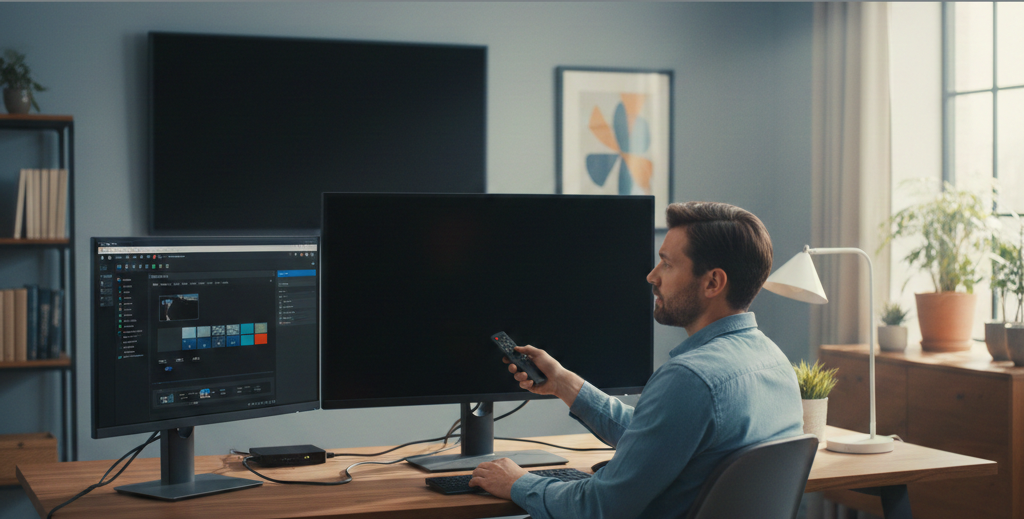
Nothing brings a live production to a grinding halt quite like a sudden black output screen. Whether you’re preparing for a Sunday service, a corporate event, a concert, or a conference, ProPresenter’s output going black can be frustrating, stressful, and confusing. You see your cues and slides on your main interface, but the external output — what your audience sees — remains blank or black. This issue is common, and while it feels catastrophic in the moment, it usually stems from technical settings or connection issues that can be resolved systematically.
In this comprehensive article, we’ll explore why your output screen might be black in ProPresenter and provide practical solutions. We’ll explain the causes in beginner-friendly terms, but also dive into the more advanced technical checks and best practices that seasoned users rely on. By the end, you’ll understand not just what to fix, but why it happens — helping you troubleshoot with confidence.
Understanding the Basics: How ProPresenter Output Works
Before we troubleshoot, let’s take a moment to understand what “output” means in ProPresenter.
Unlike the main interface where you edit and queue slides, the “output screen” is the actual signal sent to external displays — TVs, projectors, LED walls, or video switchers. ProPresenter manages multiple “screens”: your Preview, Stage Display, and Output monitors. Problems arise when the output monitor isn’t receiving or displaying the content the software is sending.
Here are some foundational pieces involved:
- Display ports and adapters: These physically carry the signal.
- Graphics settings: macOS or Windows control how external displays are interpreted.
- Resolution and refresh rates: The screen and output settings must agree.
- ProPresenter settings: You must correctly assign and enable your output display.
With those basics in mind, let’s break down common causes for a black output and how to address them.
Common Causes of a Black Output Screen
Several factors can interrupt the flow of video from ProPresenter to your external display. Some are software-related, others are hardware or connection issues.
Incorrect Display Arrangement
When you plug in a second display, macOS or Windows needs to recognize and arrange it correctly. If your system duplicates or extends displays in a way ProPresenter doesn’t expect, the output may remain black.
- Extended vs mirrored display: ProPresenter expects the output display to be available as a separate screen. If your system is set to mirror your main display, it can confuse ProPresenter’s routing.
- Undetected displays: If the OS doesn’t detect the external display at all, ProPresenter can’t send anything to it.
Disabled or Misassigned Outputs
ProPresenter has its own internal settings for assigning outputs:
- Primary Output: What goes to your main external display.
- Secondary Outputs: Additional screens if you have more than one projector or monitor.
If these are disabled or mapped incorrectly, you’ll see a black screen even though ProPresenter is running.
Resolution and Refresh Rate Mismatch
Displays have specific resolutions and refresh rates they support. If ProPresenter tries to send a signal that doesn’t match what the display supports, the result can be a black or flickering screen.
- Some projectors don’t support high refresh rates like 75Hz.
- Some LED walls require very specific resolutions.
Hardware Connection Issues
Your cables, adapters, or ports may be at fault:
- Loose HDMI or DisplayPort connections.
- Faulty adapters (e.g., VGA to HDMI converters).
- Damaged cables.
- Ports that are disabled or not functioning.
Graphics Card Limitations or System Settings
Especially on Windows systems with multiple GPUs (integrated vs dedicated), ProPresenter might be using the wrong graphics processor or settings that don’t allow external output.
Troubleshooting Step by Step: Get Your Output Back
Here’s a structured approach to diagnosing and fixing a black output screen.
Step 1: Verify Physical Connections
Start with the basics:
- Ensure all cables are fully seated.
- Swap out cables if available to rule out defects.
- Check that the projector or display is powered on and set to the correct input.
Sometimes a simple loose HDMI connection is all that’s stopping your output.
Step 2: Confirm Your Operating System Recognizes the Display
On macOS
- Click the Apple menu and choose System Settings (or System Preferences).
- Go to Displays.
- You should see two displays: your main screen and the external display.
- If you don’t see the second one:
- Click Detect Displays.
- Try unplugging and replugging the cable.
- Try a different adapter if you’re using one.
Mirror vs Extend: Click the arrangement tab. If Mirror Displays is checked, uncheck it to use Extended Desktop. ProPresenter works best with extended displays.
On Windows
- Right-click the desktop, choose Display settings.
- Scroll to Multiple displays.
- Choose Extend these displays (do not select Duplicate).
- Confirm that both monitors show a display number.
Operating systems sometimes default to mirroring, which can conflict with how ProPresenter expects to present output.
Step 3: Configure ProPresenter Output Settings Correctly
ProPresenter has its own output configuration panel.
- Open ProPresenter.
- Go to Screens or Preferences > Output.
- Ensure the correct display is chosen for each output.
- If screens appear grayed out or missing, that means the OS hasn’t recognized them properly.
Check that:
- Primary Output is enabled.
- The correct display is assigned (match with the OS display numbers).
Important: Always assign the highest priority output first. If you have multiple outputs, assign them sequentially.
Step 4: Match Resolution and Refresh Rates
When an output screen is black, it’s possible the resolution your system is sending is unsupported by the display.
How to Fix on macOS
- In Display settings, select the external display.
- Choose a compatible resolution (often 1920×1080 for projectors or 1280×720 for smaller LED panels).
- Try different refresh rates (60Hz is the most widely supported).
How to Fix on Windows
- In Display settings, select the external monitor.
- Under Display resolution, choose a suitable setting.
- Under Advanced display settings, adjust the refresh rate.
If the display does not support the set resolution and refresh rate, it will remain black until both match.
Step 5: Check Graphics Card Settings (Especially on Windows)
Windows systems with discrete GPUs (like NVIDIA or AMD) and integrated graphics can cause output conflicts.
- Open your GPU control panel (e.g., NVIDIA Control Panel).
- Ensure the external display is recognized and assigned correctly.
- Make sure ProPresenter is allowed to use the correct GPU.
Some systems default to the integrated GPU for external displays, which can prevent ProPresenter from sending video output properly.
Step 6: Update Software and Drivers
Outdated software can cause compatibility issues with displays.
- Update ProPresenter to the latest version.
- On macOS, ensure your system is up to date.
- On Windows, check for driver updates for your GPU.
Manufacturers often update drivers to support better multi-display configurations.
Advanced Scenarios and Solutions
For larger setups or professional environments, additional complications can occur.
Using Video Switchers or Scalers
If you’re routing your signal through a video switcher (like a Blackmagic ATEM) or a scaler/distribution system:
- Ensure the switcher input and output formats match (resolution/refresh rate).
- Some switchers will display a black screen if no valid signal is detected.
- Confirm that the correct input source is selected on the switcher.
LED Walls and Unconventional Displays
LED walls often require specific resolution settings:
- Some LED processors do not accept standard computer resolutions.
- You might need to run ProPresenter output into the LED controller instead of directly into the panel.
- In some cases, use a scaler that converts computer output to the LED wall’s native resolution.
Networked Outputs and NDI
If you’re using networked outputs or NDI in ProPresenter:
- Check that your network is configured correctly.
- Ensure that the receiving device is on the same network and configured to receive NDI signals.
- Firewall or router settings can block NDI traffic.
Frequently Asked Questions
My Main Interface Works But the Output Is Black — Why?
This usually indicates a display mapping or connection issue. ProPresenter shows your slides internally, but the external display isn’t receiving or recognizing the signal.
Why Did It Suddenly Work Yesterday But Not Today?
Possible causes include:
- A system or software update changed display settings.
- The external display or adapter was changed.
- A cable or port is failing.
Always retrace your connection and configuration steps when behavior changes.
I See a Cursor on the Output But Not My ProPresenter Content — What’s Happening?
This commonly occurs when the OS is set to mirror the desktop rather than extend it. ProPresenter is sending output to an extended desktop the display isn’t showing.
Can a Faulty HDMI Adapter Cause Black Screens?
Yes. Inconsistent power delivery, poor signal conversion, or a loose connection with adapters (especially USB-C to HDMI) can drop the signal entirely.
ProPresenter Best Practices to Avoid Black Screen Issues
Once you resolve the issue, follow these habits to minimize future interruptions.
Always Extend, Not Mirror
ProPresenter functions best when your system extends the desktop rather than mirrors it. When displays are mirrored, ProPresenter has limited ability to differentiate between output screens.
Assign Displays in ProPresenter Before Presentations
Before starting your event:
- Plug in all displays.
- Confirm OS recognition.
- Assign them in ProPresenter.
- Test a quick slide transition.
This gives you buffer time to solve issues before they matter.
Create a Troubleshooting Checklist
Build a checklist that includes:
- Cable inspection.
- OS display configuration.
- ProPresenter output assignment.
- Resolution validation.
- GPU and driver checks (for Windows).
Run through it quickly during setup.
Keep Equipment Updated
Regularly update:
- ProPresenter
- System software
- GPU drivers
Updates often include fixes for display handling and output glitches.
Conclusion
A black output screen in ProPresenter can feel alarming, but it is almost always resolveable. By systematically checking your physical connections, display settings, internal ProPresenter output assignments, and matching resolutions, you can identify and correct the issue with confidence. Whether you’re a volunteer tech operating a small church service projector or a production designer working with LED walls and multi-screen setups, understanding how ProPresenter outputs video will save time and stress.