
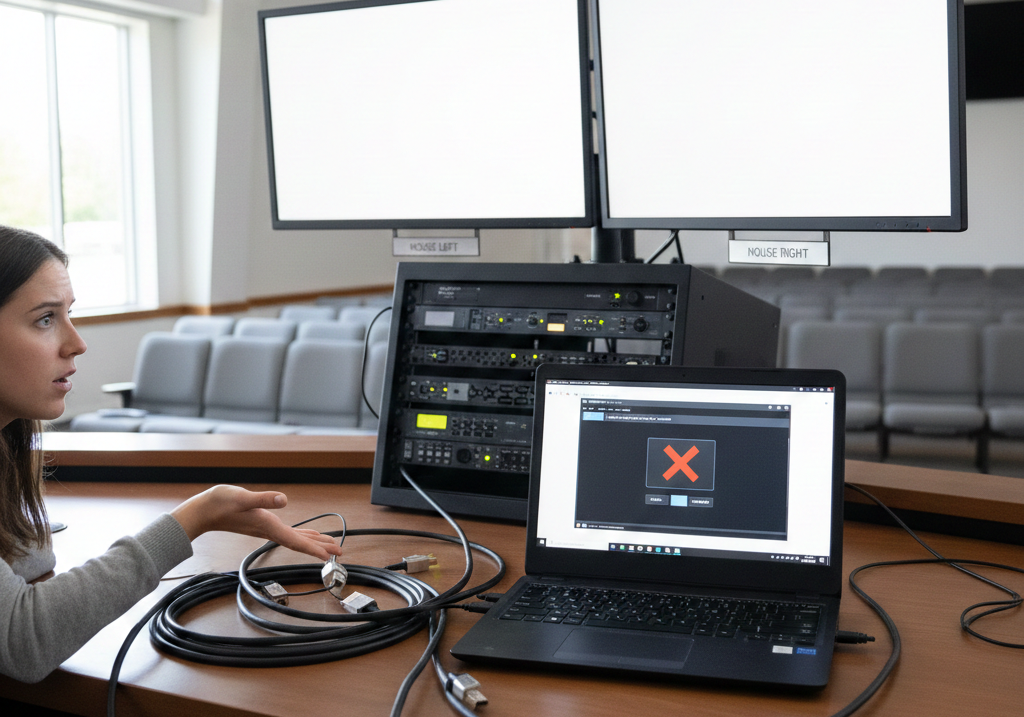
Few things are more stressful in live production than staring at a blank screen moments before an event begins. The slides look perfect on your laptop. ProPresenter is running smoothly. But the projector, broadcast switcher, or confidence monitor connected via SDI or HDMI shows nothing. No signal. Black screen. Flicker. Or worse, intermittent dropouts.
If you’ve ever asked, “Why does ProPresenter fail to output to SDI or HDMI?”, you’re not alone. This issue affects churches, corporate AV teams, live stream operators, touring productions, and hybrid event setups across the world. The problem isn’t usually ProPresenter itself. More often, it’s a configuration, hardware compatibility, signal chain, or operating system issue that disrupts the video output pipeline.
This in-depth guide explains exactly how ProPresenter video output works, why it sometimes fails over SDI or HDMI, and how to troubleshoot the problem with clarity and confidence. Whether you’re a beginner setting up your first multi-display environment or a seasoned tech director managing a complex broadcast workflow, you’ll find practical, technically accurate answers here.
Understanding How ProPresenter Outputs Video
To diagnose output failures, you first need to understand how ProPresenter interacts with your hardware. ProPresenter does not generate an SDI or HDMI signal directly. Instead, it renders video and graphics using your computer’s GPU, then hands that output to the operating system’s display system. From there, your graphics card or connected interface sends the signal through HDMI, SDI, DisplayPort, Thunderbolt, or another output.
If you’re using SDI, you’re typically relying on an external converter or a PCIe card from manufacturers like Blackmagic. HDMI is often sent directly from the graphics card or through an adapter. In both cases, ProPresenter depends on the operating system recognizing that output as a valid display.
This means any breakdown in the chain can result in no signal. The failure might be inside ProPresenter, within macOS or Windows display settings, in your GPU configuration, in a converter device, or even in a single damaged cable.
The Difference Between HDMI and SDI in Live Production
HDMI is the standard for consumer displays, projectors, and many capture devices. It is easy to use, widely supported, and cost-effective. However, HDMI is not ideal for long cable runs, and its connectors can be physically unstable in professional environments.
SDI, or Serial Digital Interface, is the broadcast standard. It uses locking BNC connectors and can carry high-resolution video over long distances without signal degradation. SDI is common in live streaming setups, broadcast switchers, and professional routing systems.
Because SDI usually involves a converter or dedicated interface, it introduces additional complexity. If ProPresenter fails to output to SDI, the issue may lie not in the software, but in the SDI hardware layer.
Misconfigured Output Settings Inside ProPresenter
One of the most common causes of failed output is incorrect screen configuration inside ProPresenter. The software allows you to assign different screens for audience output, stage display, and presenter view. If the wrong display is selected, ProPresenter may appear to function normally while sending the program feed to a different monitor than you expect.
In many cases, users accidentally assign their internal laptop screen as the audience output. The SDI or HDMI display remains unassigned, which results in no signal on the external device. The fix involves opening the screen configuration settings and verifying that the intended external display is enabled and designated as the audience output.
Resolution mismatches also cause problems. If ProPresenter is set to output 1080p at 60Hz but your projector or SDI converter only supports 1080p at 30Hz, the downstream device may show no signal at all. Matching resolution and refresh rate across the entire signal chain is essential for stable output.
Display Arrangement and Mirroring Problems
Operating system display settings frequently interfere with video output. On both macOS and Windows, displays can be mirrored or extended. In mirrored mode, all displays show the same content. In extended mode, each display functions as a separate workspace.
ProPresenter works best when external outputs are configured as extended displays. If the system is set to mirror displays, ProPresenter may not correctly differentiate between the operator screen and the program output. This confusion often results in blank SDI or HDMI feeds.
Sometimes the external display is detected but positioned virtually outside the visible desktop arrangement. In that case, ProPresenter may assign output to a display that appears disconnected from your primary screen layout. Adjusting the display arrangement in the OS settings often resolves this issue quickly.
Graphics Card Limitations and GPU Conflicts
Modern versions of ProPresenter rely heavily on GPU acceleration. If your graphics card is underpowered or overloaded, video output may fail or become unstable. Integrated graphics in entry-level laptops often struggle when driving multiple displays at high resolutions.
Certain systems only support one external display natively. When users attempt to connect both a stage display and an HDMI or SDI program feed, the system may silently disable one of the outputs. The result is confusion, especially when ProPresenter settings appear correct.
External GPU docks, Thunderbolt display adapters, and high-performance discrete graphics cards provide more reliable output in professional environments. Ensuring your hardware meets ProPresenter’s recommended specifications significantly reduces output failures.
Converter and Interface Compatibility Issues
SDI workflows frequently depend on hardware from manufacturers such as Blackmagic. If you are using a device like the Blackmagic DeckLink or UltraStudio series, it must be properly installed, configured, and recognized by the operating system.
Some interfaces are designed for video capture only and cannot output video. Others require driver installation before functioning as a display device. If the OS does not recognize the converter as a display, ProPresenter cannot send a signal to it.
Firmware mismatches between converter hardware and system software also cause output problems. Updating both the converter firmware and the associated desktop video drivers often restores functionality. It is critical to verify that your SDI interface supports the exact resolution and frame rate you are attempting to send.
Cable and Signal Integrity Problems
Cabling is often overlooked during troubleshooting. HDMI cables degrade over time and may fail under strain. Passive HDMI-to-SDI cables do not work because HDMI and SDI use different signal standards. Active converters are required to translate between them.
Long HDMI runs frequently cause signal dropouts, flickering, or complete signal loss. In contrast, SDI supports longer distances but requires high-quality coaxial cable with proper termination. A single faulty connector can interrupt the signal chain.
When diagnosing output failures, always test with a known-good cable. Swapping cables is often faster than diving into software settings, and it immediately rules out one of the most common causes.
Operating System Permissions and Driver Issues
Recent macOS and Windows updates have introduced stricter security models. Applications may require explicit permissions to access displays, GPUs, or screen recording features. If ProPresenter lacks necessary permissions, output behavior can become unpredictable.
Driver conflicts are another frequent issue. After an OS update, graphics drivers may not function correctly until updated. In Windows environments, GPU driver updates from NVIDIA or AMD often resolve mysterious output failures.
On macOS, certain updates have historically changed how external displays are handled. Verifying compatibility between your ProPresenter version and your operating system version is a crucial troubleshooting step.
Software Version Conflicts and Bugs
No software is immune to bugs. Occasionally, a particular release of ProPresenter introduces changes that affect output workflows. Users may notice output failures immediately after upgrading.
When troubleshooting, confirm you are running a stable version of ProPresenter. If the problem began after an update, reviewing release notes can reveal whether others have reported similar issues. In some cases, rolling back to a previous stable version provides temporary relief while waiting for a patch.
Corrupted preference files can also cause erratic behavior. Resetting ProPresenter preferences or performing a clean reinstall sometimes resolves output anomalies that defy explanation.
System Resource Overload
High-resolution video backgrounds, multiple layers, alpha key content, and live video inputs all consume GPU resources. When system load exceeds capacity, output may freeze, drop frames, or fail entirely.
Monitoring system performance during playback helps identify bottlenecks. If GPU usage spikes during output, lowering video resolution or optimizing media files may stabilize the signal. Professional environments often dedicate a computer solely to ProPresenter to avoid resource conflicts.
Common Real-World Scenarios
One common scenario involves a church upgrading to an SDI-based broadcast workflow. The team installs a new SDI converter and assumes ProPresenter will automatically detect it. When the program feed shows no signal on the switcher, panic sets in. In most cases, the OS simply does not recognize the converter as an extended display.
Another frequent situation occurs when a laptop works perfectly in one venue but fails in another. The culprit is often a resolution mismatch between the laptop’s output and the venue’s projector or switcher. Standardizing output resolution to 1080p at a compatible frame rate usually prevents this issue.
Traveling event teams also encounter problems when using unfamiliar HDMI distribution systems. Some splitters and extenders introduce handshake delays or HDCP conflicts, which can cause intermittent output loss.
Preventative Best Practices for Reliable Output
The most effective strategy is proactive configuration and testing. Standardize your output resolution and frame rate across all devices in your signal chain. Label cables and ports clearly to reduce routing confusion during setup.
Keep ProPresenter, your operating system, and your video interface firmware updated. However, avoid updating mission-critical systems immediately before a major event. Test all updates in advance.
Investing in professional-grade converters and certified cables reduces failure rates dramatically. Cheap adapters may work in controlled environments but often fail under live production stress.
Maintaining documentation of your configuration also pays dividends. If a volunteer operator needs to troubleshoot quickly, clear documentation shortens the diagnosis process significantly.
When to Seek Professional Support
If you have verified software settings, confirmed display detection, updated drivers, replaced cables, and still experience output failure, the issue may involve deeper hardware incompatibilities. In those cases, consulting with a professional AV integrator or contacting ProPresenter support can save time and prevent further disruption.
Professional environments often benefit from redundant output paths. Running both SDI and HDMI simultaneously, when possible, provides a backup if one signal chain fails. Redundancy is a hallmark of reliable live production systems.
Conclusion
ProPresenter failing to output to SDI or HDMI is rarely caused by a single mysterious flaw. It is usually the result of a misconfiguration, hardware limitation, driver issue, or signal integrity problem somewhere along the chain. Understanding how ProPresenter interacts with your operating system and video hardware is the key to resolving these issues quickly. By approaching troubleshooting methodically and ensuring compatibility across your entire signal path, you can transform output reliability from a constant worry into a predictable, stable part of your workflow. Live production leaves little room for uncertainty, but with the right knowledge and preparation, you can ensure your ProPresenter output performs exactly as expected when it matters most.