
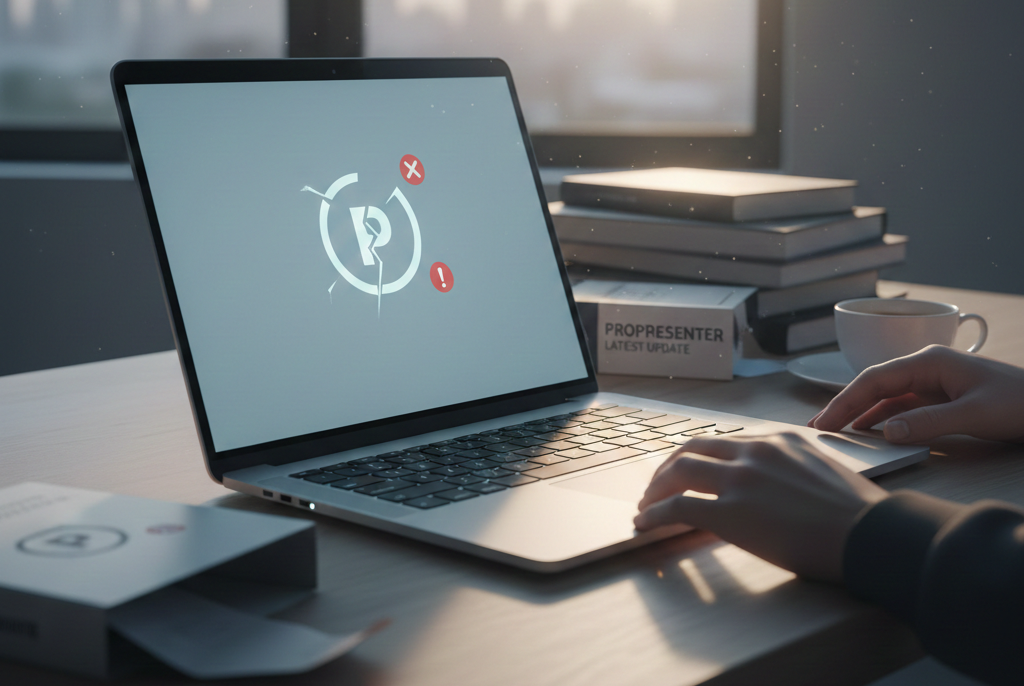
Few things are more frustrating in a live production environment than software that refuses to open—especially when that software is central to your presentation workflow. ProPresenter, developed by Renewed Vision, is trusted by churches, conference centers, broadcast teams, and event producers worldwide. When it fails to launch after an update, the disruption can be immediate and costly.
This issue matters because ProPresenter is often mission-critical. It drives lyrics, sermon slides, lower thirds, video playback, and multi-screen outputs. When an update renders it unresponsive, teams are left scrambling for workarounds minutes before doors open. Understanding why ProPresenter fails to open on Windows or macOS after an update is the first step toward resolving the issue quickly and preventing it in the future.
What Happens When ProPresenter Won’t Open After an Update
When ProPresenter fails to launch after an update, the behavior can vary. In some cases, clicking the application icon produces no visible response. In others, the splash screen appears briefly before the program crashes. Some users encounter a spinning cursor, frozen interface, or a crash report immediately after startup.
These symptoms typically indicate a breakdown in communication between the updated software and the operating system. Updates modify internal files, libraries, and configuration structures. If the system environment does not align perfectly with those changes, the application may fail before it fully initializes.
On both Windows and macOS, ProPresenter relies heavily on system frameworks, graphics drivers, file permissions, and database integrity. A mismatch in any of these components can prevent it from opening properly.
Why Software Updates Sometimes Break Stable Systems
Software updates are intended to improve stability, security, and performance. However, updates also introduce new dependencies and revised code paths. In a complex program like ProPresenter, which handles real-time rendering, multi-display output, and media decoding, even small architectural changes can ripple outward.
On macOS, updates must remain compatible with Apple’s evolving system APIs and security architecture. On Windows, updates must account for different system builds, driver stacks, and runtime environments. When ProPresenter’s new version assumes certain system libraries or GPU capabilities that are missing or outdated, startup failures can occur.
The problem is rarely random. It is usually the result of a specific incompatibility between the updated version of ProPresenter and the environment in which it is installed.
Operating System Compatibility Issues
One of the most common reasons ProPresenter fails to open after an update is operating system incompatibility. On macOS, Apple frequently modifies system security rules, file system permissions, and graphics frameworks. If ProPresenter is updated before the operating system—or vice versa—the two may not cooperate.
For example, newer macOS versions tighten access to user directories and media folders. If ProPresenter does not have the required permissions after an update, it may stall during startup while attempting to load assets. Conversely, running a newer ProPresenter release on an older macOS build can lead to missing API calls or unsupported graphics routines.
On Windows, compatibility problems often stem from system version mismatches or missing runtime components. ProPresenter relies on certain Visual C++ redistributables and modern DirectX capabilities. If Windows is outdated or partially updated, the application may fail silently at launch. Inconsistent Windows builds across machines can also create unpredictable behavior after updates.
Corrupt or Incomplete Installation Files
Another frequent cause of launch failures is a corrupted update process. When ProPresenter updates, it replaces core executables, libraries, and configuration files. If the update is interrupted due to network instability, low disk space, antivirus interference, or a forced restart, essential files may not install properly.
A partially installed update can create a situation where the application executable exists but cannot load required dependencies. The operating system may block the launch entirely, or the program may crash immediately after initialization begins.
Corruption can also occur during download. If the installer package itself is damaged, installing it will introduce instability from the start. This type of failure is often resolved by completely uninstalling ProPresenter and reinstalling a fresh copy from the official source.
Media Database and Configuration Corruption
ProPresenter maintains a structured database containing presentations, playlists, media references, themes, and cues. During updates, the software may perform a database migration to align older data with new architectural requirements.
If this migration fails or encounters inconsistent entries, ProPresenter may crash during startup while attempting to load corrupted records. Large media libraries increase the likelihood of minor inconsistencies that only surface after structural changes in an update.
Improper shutdown before updating can also corrupt configuration files. If ProPresenter was force-quit or the system crashed before the update, the application may attempt to load damaged preference files on next launch, resulting in immediate failure.
Graphics Driver Conflicts and GPU Acceleration Problems
ProPresenter is graphics-intensive. It relies on hardware acceleration to render video, animations, and multi-screen output efficiently. Updates often improve rendering engines or optimize GPU performance. However, those improvements may depend on modern graphics drivers.
On Windows, outdated NVIDIA, AMD, or Intel drivers frequently cause launch crashes after updates. The application may attempt to access GPU features unsupported by older drivers, leading to initialization failure. Updating graphics drivers resolves many startup issues that appear immediately after installing a new version of ProPresenter.
On macOS, graphics drivers are bundled with system updates. If macOS is behind or recently updated, the interaction between the new driver layer and ProPresenter’s rendering engine may cause instability. External displays and capture devices can complicate matters further, particularly in multi-output configurations.
Security and Permission Restrictions
Modern operating systems prioritize security. Both Windows and macOS require explicit permissions for applications to access certain directories, system resources, and hardware features. After an update, ProPresenter may need renewed access to folders such as Documents, Desktop, or external drives.
On macOS, Full Disk Access and Screen Recording permissions are particularly important. If these permissions are revoked or reset during an OS or application update, ProPresenter may fail during launch while attempting to access restricted directories. Reviewing Security and Privacy settings often reveals blocked access that must be manually reauthorized.
On Windows, User Account Control and antivirus software can interfere with updates. Some security suites flag updated executables as suspicious until manually approved. If essential components are quarantined, ProPresenter may not open at all.
Plugin and Third-Party Integration Conflicts
Advanced users often integrate ProPresenter with external control systems, MIDI devices, stream decks, or custom plugins. Updates may change internal APIs that these integrations depend on. If a plugin was built for an earlier version, it may attempt to call functions that no longer exist.
When ProPresenter loads plugins during startup, an incompatible extension can cause the entire application to crash. Because plugins load early in the process, the failure can appear as though the core program itself is broken.
Temporarily removing third-party extensions is an effective way to isolate this issue. If the program launches normally without them, the cause is clearly tied to external integrations.
Licensing and Activation Complications
ProPresenter requires valid licensing and periodic verification. After an update, the software may attempt to revalidate activation credentials. In restricted network environments, outbound verification requests may fail.
If the system cannot confirm license status, it may prevent full launch or display repeated activation prompts. Firewalls, proxy servers, or DNS misconfigurations can interfere with this verification process. Ensuring stable internet connectivity during and after updates helps avoid this problem.
Diagnosing the Root Cause Effectively
When ProPresenter fails to open, a structured diagnostic approach saves time. Restarting the computer clears temporary memory states and releases locked files. Confirming that the system meets current minimum requirements eliminates compatibility concerns early in the process.
On Windows, reviewing the Event Viewer can reveal application errors tied to missing DLL files or graphics drivers. On macOS, Console logs and crash reports provide detailed traces showing exactly where initialization failed. These reports often point directly to problematic frameworks or permission denials.
If no clear error appears, reinstalling ProPresenter without deleting user data can repair corrupted binaries. In more severe cases, resetting preferences while preserving media backups may restore stability.
The Impact of Rapid OS Evolution
One emerging trend in recent years is the accelerated pace of operating system updates. Apple frequently introduces significant security and architectural changes in macOS releases. Microsoft continues refining Windows 11 with ongoing feature updates. These rapid cycles increase the probability that professional software like ProPresenter must adapt quickly.
Users who update their operating systems immediately upon release sometimes encounter compatibility gaps. Waiting until both the OS and ProPresenter are confirmed stable together can reduce risk. Production environments benefit from cautious upgrade strategies rather than immediate adoption.
Hardware Limitations and Aging Systems
Not all launch failures stem from software bugs. Hardware limitations can surface when new versions of ProPresenter demand more GPU memory, faster processors, or expanded RAM. Older machines that previously handled lighter workloads may struggle with enhanced rendering engines.
Symptoms can include freezing during startup or crashing when loading high-resolution assets. Monitoring system resource usage can reveal whether memory or graphics constraints are contributing to instability.
In professional AV setups, aligning hardware refresh cycles with major software updates helps maintain performance reliability.
Preventing Future Launch Failures
Preparation is the most effective defense against update-related disruptions. Updating ProPresenter well before a scheduled service or live event allows time to test functionality. Maintaining full backups of show files and media databases ensures that recovery is straightforward if something goes wrong.
Reading release notes before updating can reveal known issues or compatibility advisories. If an update addresses features irrelevant to your workflow, delaying installation may be prudent until stability is confirmed by other users.
Standardizing hardware and OS versions across systems also reduces unpredictable outcomes. Mixed environments introduce more variables and increase the likelihood of update conflicts.
When Professional Support Is Necessary
If troubleshooting does not resolve the issue, contacting Renewed Vision support is advisable. Providing crash logs, system specifications, and a detailed description of the failure accelerates diagnosis. Support teams can identify obscure edge cases that may not be documented publicly.
Community forums and user groups also provide valuable insights. Often, if one user experiences a post-update launch failure, others will report similar behavior, revealing patterns tied to specific OS builds or driver versions.
Conclusion
When ProPresenter fails to open on Windows or macOS after an update, the root cause is usually identifiable and correctable. Whether the issue involves operating system compatibility, corrupted installation files, database conflicts, security permissions, graphics drivers, or third-party integrations, systematic troubleshooting typically restores functionality.
The key is preparation and measured updates. Treating production software with the same discipline as enterprise IT systems minimizes risk. Test updates during controlled windows, maintain verified backups, and keep hardware and drivers current.