
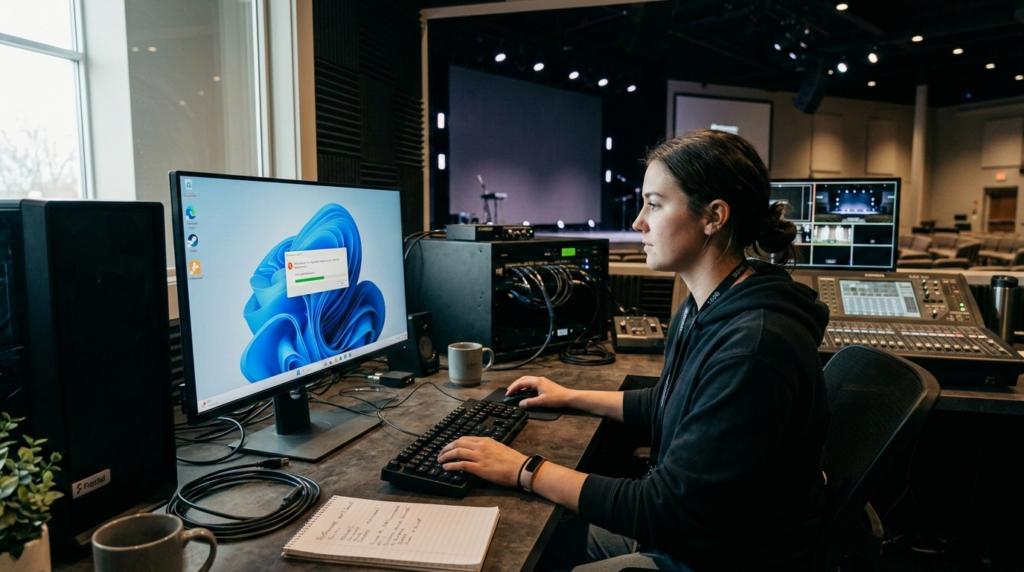
ProPresenter is a powerful presentation and live production software trusted by churches, event organizers, schools, and broadcasters around the world. Its ability to manage lyrics, sermon slides, videos, lower thirds, and live streams makes it an essential part of many production environments. But when ProPresenter installs successfully on a Windows computer and then refuses to launch, the frustration can be immediate and intense—especially when a service or event is just hours away.
This issue is more common than many users realize. The installer may complete without errors, the desktop shortcut appears as expected, and yet clicking the icon results in nothing happening at all. In some cases, the application flashes briefly in the taskbar and disappears. In others, it may hang silently in the background. Understanding why this happens requires looking beyond the surface and examining how Windows handles software initialization, system resources, security, and hardware acceleration.
This in-depth guide explores the real reasons ProPresenter may install but fail to open on Windows. It covers compatibility issues, graphics driver conflicts, missing dependencies, security restrictions, and more. Whether you are new to ProPresenter or an experienced tech director troubleshooting a production machine, this article will help you diagnose the problem with clarity and confidence.
Understanding the Difference Between Installation and Launch
When users say ProPresenter “installed fine,” they usually mean the installer completed without displaying an error message. However, installation and launch are two separate processes. Installation copies files to your system, creates registry entries, and configures certain runtime components. Launching, on the other hand, requires Windows to load those files into memory, initialize graphics and audio systems, access required libraries, and validate permissions.
A program can install successfully while still being unable to complete the runtime initialization process. This distinction is important because it shifts the troubleshooting mindset. Instead of focusing solely on the installer, attention needs to move toward system compatibility, resource access, and background conflicts that occur when the application attempts to run.
Operating System Compatibility and Windows Version Issues
One of the first areas to evaluate is whether your Windows environment fully supports the version of ProPresenter you installed. Modern builds of ProPresenter are optimized for recent Windows versions, particularly Windows 10 and Windows 11. If the system is running an outdated build or an unsupported edition, launch failures can occur without clear error messages.
Windows feature updates sometimes modify core graphics subsystems, user account control behavior, and driver management. If ProPresenter was installed on a system that has not received current updates, certain APIs or runtime services may not function as expected. In these cases, the software may simply fail during startup without providing a visible explanation.
It is also worth noting that running ProPresenter inside compatibility mode for older Windows versions can create unintended conflicts. While compatibility mode is useful for legacy software, it can interfere with modern applications that depend on current system architecture.
Graphics Drivers and Hardware Acceleration Conflicts
ProPresenter relies heavily on GPU acceleration to render slides, transitions, and video playback. If the graphics subsystem is unstable or improperly configured, the application may crash before it even displays its interface. In many real-world cases, graphics drivers are the primary cause of launch failures.
Windows sometimes installs generic display drivers instead of optimized drivers provided by GPU manufacturers like NVIDIA, AMD, or Intel. These generic drivers may be sufficient for everyday desktop use but can fail under the demands of multimedia software. When ProPresenter attempts to initialize hardware acceleration, the process may terminate if the driver does not respond correctly.
Outdated drivers are another frequent culprit. Even if your system appears to function normally, an older driver version may not support the rendering methods required by newer ProPresenter releases. Updating the graphics driver directly from the manufacturer’s website often resolves unexplained launch crashes.
In systems with both integrated and dedicated graphics cards, Windows may default to the integrated GPU. This can create performance bottlenecks or incompatibility during initialization. Adjusting the graphics preference to force ProPresenter to use the dedicated GPU can sometimes restore normal operation.
Missing or Corrupted Runtime Dependencies
Behind every Windows application is a collection of supporting runtime libraries. ProPresenter depends on components such as Microsoft Visual C++ Redistributables and the .NET Framework. If these dependencies are missing, outdated, or corrupted, the application may fail during startup.
When a required DLL file cannot be located or loaded, Windows may terminate the process silently. This is why checking the Event Viewer under the Application logs can be valuable. Often, a failed launch will generate an error entry referencing a specific missing runtime file.
System file corruption can also interfere with dependency loading. In these cases, built-in Windows tools like the System File Checker or Deployment Image Servicing and Management utility can repair damaged system components. Reinstalling Visual C++ packages and confirming that the correct .NET version is enabled can eliminate a surprising number of launch issues.
User Account Permissions and Security Restrictions
Windows security architecture is designed to protect users from malicious software, but those protections can occasionally interfere with legitimate programs. If ProPresenter lacks sufficient permissions to access certain folders, registry keys, or system resources, it may fail to launch properly.
Running the application with administrator privileges can determine whether permission restrictions are involved. If ProPresenter opens successfully under elevated permissions, it indicates that the standard user account may not have the necessary access rights.
Antivirus and endpoint protection tools can also block application execution. Some security software monitors newly installed executables and may quarantine components without clearly notifying the user. Temporarily disabling security software for testing purposes can help determine whether it is interfering with ProPresenter’s startup sequence.
Windows SmartScreen can also prevent applications from launching if they are flagged or unverified. Reviewing Windows Security settings to confirm that ProPresenter has not been blocked is another important troubleshooting step.
Corrupted Installation or Incomplete Download
Even when an installer reports success, file corruption can occur during download or installation. An interrupted internet connection, background system instability, or aggressive antivirus scanning can damage installation files.
If key application files are corrupted, ProPresenter may fail during initialization. Performing a clean reinstall is often the most efficient solution. This involves uninstalling the application, removing residual folders from the Program Files directory and user AppData folders, and then installing a freshly downloaded copy from the official source.
Ensuring that antivirus software does not interfere during installation is equally important. Some real-time scanning engines mistakenly flag multimedia components, which can lead to incomplete setups that appear successful but are functionally broken.
Conflicts With Background Applications
Live production environments often include streaming software, capture utilities, remote desktop tools, and display management applications. While these programs are valuable, they can interfere with ProPresenter’s access to graphics and display resources.
Applications that hook into the graphics pipeline or overlay system-level rendering processes can conflict with ProPresenter’s initialization. If another application is already controlling display outputs or using hardware acceleration intensively, ProPresenter may fail to obtain exclusive access during launch.
Testing the system in a clean boot environment can isolate these conflicts. If ProPresenter launches normally when background services are disabled, the problem likely stems from software interference rather than system instability.
Display Configuration and Multi-Monitor Complexity
ProPresenter is designed for multi-display setups, but complex display configurations can sometimes cause startup confusion. Systems with multiple monitors running at different resolutions or refresh rates may encounter rendering conflicts during initialization.
If external projectors, capture cards, or HDMI splitters are connected during startup, Windows may assign display identifiers inconsistently. When ProPresenter attempts to detect and configure outputs, it may encounter errors that prevent the interface from loading.
Temporarily disconnecting external displays and launching the software with a single monitor can help determine whether display configuration is contributing to the problem. Updating display adapter firmware and ensuring consistent refresh rates across monitors can also improve stability.
Windows Updates and System Changes
There are cases where ProPresenter works flawlessly for months and then suddenly stops launching after a Windows update. Major feature updates sometimes modify how drivers are handled, how applications request permissions, or how multimedia frameworks operate.
If the issue began immediately after a system update, reviewing the update history can provide clues. Rolling back a recent update or installing the latest ProPresenter patch may restore compatibility. Software developers frequently release updates to address operating system changes, so keeping both Windows and ProPresenter current is critical.
System restore points can also be valuable in determining whether a recent change triggered the issue. Restoring to a previously stable configuration can confirm whether the problem is update-related.
Corrupted User Profiles and Registry Issues
Each Windows user account maintains its own application settings and registry entries. If a user profile becomes corrupted, ProPresenter may fail to load its configuration data during startup.
Creating a new administrator account and attempting to launch ProPresenter under that profile can quickly identify whether the issue is user-specific. If the software opens normally under a new account, migrating data and recreating the original profile may be necessary.
Registry inconsistencies can also disrupt application initialization. Although editing the registry manually is not recommended without expertise, reinstalling the application often regenerates the necessary registry entries.
Hardware Performance and Resource Limitations
While ProPresenter can install on systems that meet minimum requirements, real-world performance demands often exceed those baseline specifications. Insufficient RAM, limited CPU capacity, or restricted GPU memory can prevent stable launch behavior.
Systems operating under heavy load may fail to allocate sufficient memory during initialization. Monitoring resource usage in Task Manager can reveal whether background processes are consuming excessive system resources.
Power management settings on laptops can also restrict GPU performance. Switching from a power-saving mode to a balanced or high-performance plan can restore full hardware access and allow ProPresenter to initialize correctly.
Diagnosing the Problem Methodically
Troubleshooting software launch issues requires a structured approach rather than guesswork. Starting with a simple system restart eliminates temporary glitches. From there, verifying graphics drivers, reviewing Event Viewer logs, confirming runtime dependencies, and testing under administrator privileges can narrow down the root cause.
Systematically isolating variables prevents unnecessary reinstallation or hardware replacement. Often, the issue stems from a single misconfigured driver or permission setting rather than a fundamental incompatibility.
Maintaining documentation during troubleshooting is helpful, especially in production environments where multiple technicians may be involved. Recording system changes ensures that successful solutions can be replicated in the future.
Conclusion
When ProPresenter installs but does not launch on Windows, the issue is rarely random. It usually traces back to graphics drivers, runtime dependencies, permissions, display conflicts, or recent system changes. Although the lack of a clear error message can be frustrating, a methodical diagnostic process almost always reveals the underlying cause.
For mission-critical environments such as churches and live events, maintaining updated drivers, stable Windows builds, and properly configured hardware is essential. Preventative maintenance can reduce the risk of unexpected launch failures before important services or productions.