
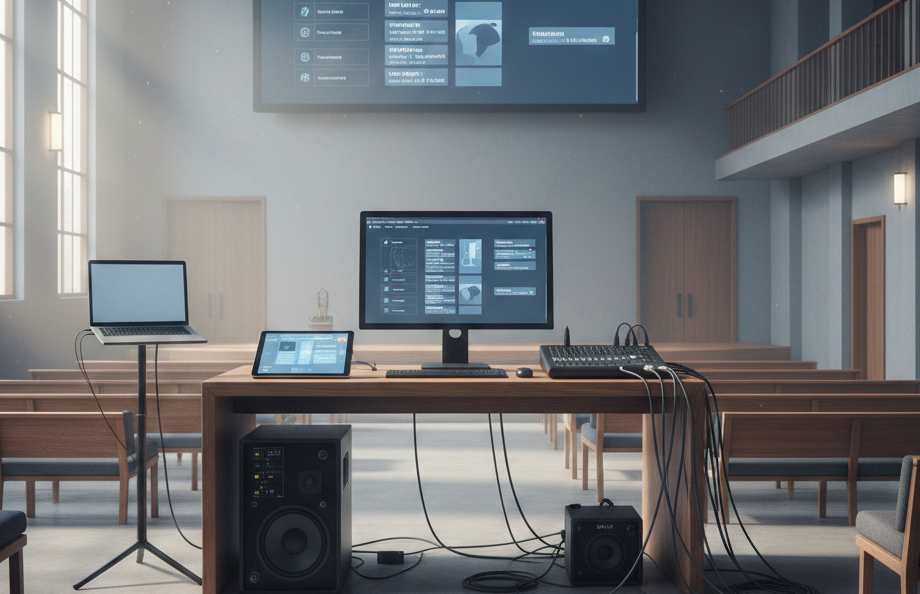
ProPresenter is a powerful presentation and live production software widely used in houses of worship, corporate events, conferences, concerts, and educational environments. It enables presenters to seamlessly display lyrics, slides, videos, and live video feeds with precision timing and dynamic control. One of the most common questions prospective users ask is: Does ProPresenter require an internet connection to run? This question matters because many event venues, worship spaces, and broadcast environments operate with limited or no internet access. Understanding ProPresenter’s connection requirements helps organizers plan their technical setup with confidence.
In this detailed guide, we will explore the role of internet connectivity in ProPresenter’s installation, licensing, daily operation, and advanced features. Whether you are a seasoned technician setting up a large event or a volunteer preparing for your first service, this article will equip you with clear, practical insights.
Understanding ProPresenter
What Is ProPresenter?
ProPresenter is a real-time presentation software designed to handle live productions. Unlike traditional slide-based tools like PowerPoint or Keynote, ProPresenter is engineered for dynamic content playback with low latency, multi-screen outputs, and advanced media control. It supports features like live video input, stage display outputs, bible integration (for worship contexts), and networked control among multiple computers.
Who Uses ProPresenter?
ProPresenter’s flexibility has made it a go-to solution for:
- Worship teams managing lyrics and sermon visuals
- Conference and event production teams
- Educational institutions presenting multimedia content
- Broadcast studios integrating lower thirds and overlays
- Corporate presentations requiring synchronized multi-screen playback
Does ProPresenter Need an Internet Connection to Run?
The Short Answer
No, ProPresenter does not require an active internet connection for normal operation. Once installed, licensed, and configured, the software can run entirely offline. This includes presenting slides, videos, lyrics, and managing local media libraries. However, there are specific scenarios where internet access is beneficial or required.
The Long Answer
While the core functionality of ProPresenter does not depend on the internet, certain features, updates, and licensing workflows do interact with online services. Let’s break down where internet connectivity matters — and where it doesn’t — so you can plan your setup effectively.
Installation and Activation
Installing ProPresenter
Installing ProPresenter begins with downloading the installer from Renewed Vision’s official website. This download obviously requires internet access. However, once you have the installation file saved locally (for example, on a USB drive), you can install ProPresenter on any compatible computer without further internet involvement.
Activating Your License
ProPresenter uses a subscription-based licensing model. During activation:
- The software validates your license key with Renewed Vision’s servers.
- This initial activation requires an internet connection.
If your presentation computer doesn’t have internet access, you can activate ProPresenter on another computer and transfer the license. Renewed Vision provides offline activation instructions in their support documentation.
Key Point: You need internet access for initial activation, but not for daily operation after activation.
Daily Operation: Offline Capability
Once ProPresenter is installed and activated, you can use it offline without any internet connection. This includes:
- Loading and presenting slides
- Playing embedded videos
- Displaying backgrounds and motion loops
- Operating multi-screen outputs
- Switching between playlists and cues
This offline mode is critical for environments like:
- Remote event venues with limited internet
- Outdoor festivals or temporary stages
- Churches whose presentation machines are isolated from the network
Offline operation is one of ProPresenter’s core strengths, giving teams the flexibility to run reliable shows without network dependency.
When Internet Connection Is Required
While ProPresenter works offline day-to-day, there are features and workflows that benefit from or require internet access. Let’s examine these:
Software Updates
ProPresenter periodically releases updates that include:
- New features
- Security patches
- Bug fixes
- Performance improvements
Downloading and installing these updates requires an internet connection. Regularly updating ensures stability and access to the latest tools, especially ahead of high-profile events.
Cloud Services and Sync
ProPresenter includes cloud-based features such as:
- Sharing presentations between machines via cloud services
- Syncing libraries and media assets across a team
- Collaborating on playlists or production elements
These cloud workflows require internet access to function, but they are optional enhancements rather than core requirements.
Remote Control and Companion Apps
ProPresenter supports remote control functionality through wireless devices or companion apps (e.g., on tablets or phones). While basic remote control can operate over a local network (LAN) without internet, certain remote workflows may require connectivity outside the local network.
Bible and Text Downloads
For teams that use the integrated Bible feature, downloading specific translations or reference material may require an online connection. Once downloaded, these resources are available offline.
Local Network vs. Internet Connection
It’s important to distinguish between local network access and internet connectivity.
Local Network (LAN)
A local network enables communication between devices on the same network (e.g., backstage computer, stage display computers, tablets). ProPresenter can use LAN for:
- Remote control via local devices
- Syncing between computers
- Sharing stage displays
This local connection does not need internet access; it can operate entirely within a closed network.
Internet Connectivity
Internet access involves external connectivity beyond your local network — typically through an ISP. This is relevant for cloud-based services, updates, or remote collaboration outside the venue.
Practical Scenarios
Scenario 1: Church Presentation Team with No Internet Access
Your church sanctuary does not have Wi-Fi or internet access:
- ProPresenter runs perfectly offline.
- All media, slides, and video files are stored locally.
- Remote control can function over a local Wi-Fi network (router without internet).
- Updates and license activation can be performed on another connected computer.
Scenario 2: Conference Venue with Limited Internet
The venue offers unreliable internet:
- Use offline mode for the main presentation computer.
- Prepare all media and playlists locally ahead of time.
- Avoid relying on cloud sync during the event.
- Use a local network for remote control.
Scenario 3: Multi-Site or Remote Collaboration
A team works across multiple locations:
- Internet access becomes essential for sharing and syncing projects via cloud.
- Backup and version control through cloud services help maintain consistency.
In each scenario, ProPresenter’s flexibility accommodates both offline and online workflows.
Best Practices for Offline Operation
Here are some recommended practices to ensure smooth offline operation:
Prepare Materials in Advance
- Import all media and videos before the event.
- Confirm slide transitions and timing.
- Avoid last-minute downloads from external sources.
Use Local Storage
- Store media on fast internal drives or local NAS systems.
- Avoid reliance on external cloud streaming during presentations.
Test Offline Functionality
Rehearse your show without an internet connection to:
- Confirm everything loads as expected
- Validate remote control and stage display workflows
- Eliminate surprises on event day
Maintain a Local Network
If using multiple devices, use a dedicated router (without internet) to host a local network. This allows:
- Remote control devices to connect
- Multiple output streams to sync
- Operators to communicate wirelessly
Licensing Details
ProPresenter licensing works on a subscription model. The key elements include:
- License Key: A unique code that unlocks full functionality.
- License Activation: Verification with Renewed Vision’s servers.
- Offline Activation Option: Available for systems without internet.
Once activated, the license remains valid until its renewal period ends. Renewal and re-activation typically require internet access, though Renewed Vision offers offline alternatives.
Understanding licensing workflows helps teams avoid last-minute connectivity issues during deployments.
Internet Myths About ProPresenter
Several misconceptions are circulating about ProPresenter’s need for internet connectivity. Let’s clear up the most common myths:
Myth: ProPresenter Won’t Work Without Internet
Not true. The software runs fully offline once installed and activated.
Myth: You Must Have Constant Internet for Remote Control
Not necessarily. Remote control can work over a local Wi-Fi network without internet. Only external remote scenarios require internet.
Myth: You Can Only Use Cloud Features
Cloud features are optional. They enhance collaboration and asset sharing but are not prerequisites for operation.
Understanding these distinctions ensures realistic expectations and proper setup planning.
Recent Trends and Developments
In recent years, presentation and live production tools have increasingly incorporated cloud capabilities to support distributed teams, remote access, and real-time collaboration. ProPresenter has followed this trend with features like:
- Cloud-based library sharing
- Collaboration workflows
- Web-based asset management
These features are valuable for multi-site organizations and remote teams. However, ProPresenter continues to prioritize reliability and performance for offline environments, recognizing that many live venues still operate with limited or no internet access.
This blend of offline strength and optional online enhancement positions ProPresenter as a flexible solution for modern productions.
Troubleshooting Connectivity Questions
Activation Issues
If you encounter activation errors due to lack of internet:
- Use offline activation tools provided by Renewed Vision.
- Activate on a connected computer and transfer the license.
Remote Control Not Working
Check that:
- Your local network is configured properly.
- Firewall settings allow connections.
- Devices are on the same network subnet.
These issues often stem from network setup rather than internet availability.
Update Failures
If update checks fail:
- Download updates on a computer with internet access.
- Transfer and install manually on the offline machine.
Having a separate update workflow ensures your event machine remains stable and secure.
Conclusion
ProPresenter does not require an internet connection to operate once it is installed and licensed. Its core presentation capabilities—including displaying slides, playing videos, managing playlists, and routing multi-screen outputs—can function entirely offline. Internet connectivity is relevant for initial activation, software updates, cloud collaboration features, and certain online services, but these are optional enhancements rather than day-to-day necessities.