
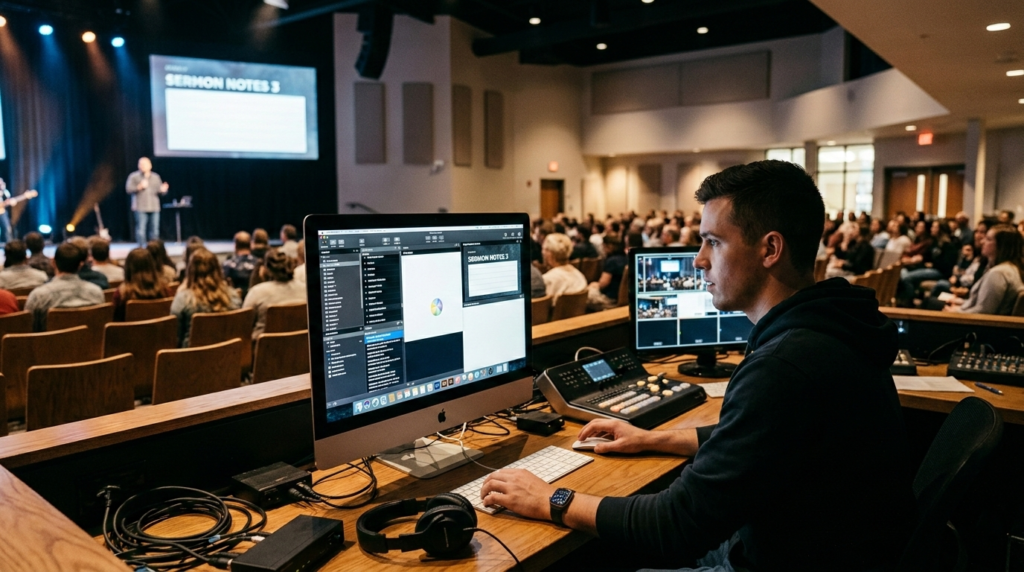
Live presentations depend heavily on reliability. Whether the software is being used in a church service, a corporate event, a concert environment, or a livestream production studio, presentation tools must function without interruption. When a presentation suddenly freezes in the middle of a live event, it can quickly disrupt the flow of the program and create awkward moments for both presenters and audiences.
One of the most common technical complaints from users of ProPresenter is that the software becomes completely unresponsive during a presentation. The interface may stop responding to clicks, slides may refuse to advance, or the entire application may appear frozen. In some cases the operating system displays a “not responding” message while the presentation output remains stuck on a single slide.
Understanding why this happens is important for anyone responsible for live presentations. The issue rarely comes from a single cause. Instead, it usually results from a combination of system limitations, configuration problems, media file issues, or software conflicts. By understanding how ProPresenter operates and what factors influence its stability, operators can prevent most of these problems before they occur.
This article explores the technical reasons ProPresenter may freeze mid-presentation and explains practical strategies for diagnosing and preventing these issues.
Understanding How ProPresenter Handles Live Presentations
ProPresenter is far more complex than a typical slide presentation program. Unlike basic tools such as Microsoft PowerPoint, ProPresenter acts as a real-time presentation engine capable of controlling multiple screens simultaneously while rendering images, video, text layers, and animations.
During a live presentation the software may be responsible for sending different outputs to several displays at once. One display might show slides for the audience while another provides stage prompts for speakers or performers. Some setups also include livestream feeds, confidence monitors, or LED walls that require separate output signals.
Because of this complexity, ProPresenter continuously performs several tasks at the same time. It must decode video files, render graphics, update slide transitions, and communicate with external displays. These tasks depend heavily on the computer’s processor, graphics hardware, memory, and storage performance.
When any one of these components becomes overloaded or encounters a problem, the application can stall. At that point the software may appear frozen even though the underlying issue may involve hardware resources or media processing rather than the program itself.
The Role of Hardware Performance in Presentation Stability
One of the most frequent reasons ProPresenter becomes unresponsive is insufficient hardware performance. Presentation environments have evolved dramatically in recent years, and modern services or events often rely on high-resolution media, background videos, animated graphics, and multiple display outputs.
When a computer does not have enough processing power or memory to handle these demands, performance begins to degrade. Slide transitions may slow down, video playback may stutter, and eventually the application may stop responding entirely.
The graphics processing unit plays a particularly important role in ProPresenter’s performance. Rendering slides, motion backgrounds, and video layers requires constant communication between the application and the GPU. If the graphics hardware is outdated or underpowered, the rendering pipeline may stall during a presentation.
Memory limitations can also contribute to freezes. When the system runs out of available RAM, the operating system begins transferring data to disk storage in a process called memory swapping. This dramatically slows down performance and may cause the program to appear frozen while it waits for data to be retrieved.
In many live production environments operators attempt to run multiple demanding applications simultaneously. For example, a single computer may be used to run ProPresenter while also encoding a livestream using software such as OBS Studio. While this approach can work in smaller setups, it places additional strain on the system and increases the likelihood of performance problems during a presentation.
Graphics Driver Problems and Rendering Failures
Another major cause of unresponsive behavior involves graphics drivers. Drivers act as the communication layer between the operating system and the computer’s graphics hardware. If the driver is outdated or incompatible with the version of ProPresenter being used, rendering operations may fail.
When ProPresenter attempts to display slides or play video, it relies on the graphics driver to handle hardware acceleration. If the driver does not correctly support certain graphical operations, the application may pause while waiting for a response from the GPU.
This situation often becomes noticeable during slide transitions or video playback. The interface may appear to freeze momentarily before becoming completely unresponsive. Updating the graphics driver frequently resolves these problems because newer drivers contain performance improvements and compatibility fixes.
Driver problems are particularly common on systems that have recently updated their operating system or installed a new version of ProPresenter. Even minor changes in graphics libraries can affect how the software interacts with hardware acceleration.
Operating System Compatibility Challenges
Software compatibility with the operating system can also influence stability. Each release of ProPresenter is designed to work with specific versions of Windows or macOS. When the operating system is significantly older or newly updated, unexpected compatibility issues may arise.
Operating system updates often introduce changes to security frameworks, graphics APIs, and hardware drivers. These changes can alter how applications access system resources. When ProPresenter interacts with these components in ways that the new system handles differently, freezing or unresponsive behavior may occur.
Compatibility problems sometimes appear after a major operating system upgrade. The program may launch normally but freeze when attempting to render slides or access media files. In these situations installing the latest compatible version of ProPresenter typically resolves the issue.
Experienced production teams usually avoid installing operating system updates shortly before a major event. Instead they wait until they have time to test the system thoroughly and confirm that all production software continues to operate correctly.
Media File Issues and Playback Conflicts
Presentations created in ProPresenter often include a wide range of media files. These may include high-resolution images, video backgrounds, motion graphics, and audio tracks. If any of these files become corrupted or use incompatible formats, they can interrupt the presentation process.
Video playback is particularly demanding because the application must decode compressed media while simultaneously rendering slides and maintaining synchronization across displays. If a video file uses an unsupported codec or an extremely high bitrate, the decoding process may overwhelm the system.
Corrupted media files can also cause problems. When ProPresenter attempts to load a damaged file during a presentation, the program may pause indefinitely while trying to read the data. This can give the appearance that the software has completely frozen.
Large media assets may also contribute to instability if they exceed the capabilities of the hardware. For example, extremely high-resolution video files designed for cinema production may require more processing power than the presentation system can provide in real time.
In many cases the solution involves re-encoding video files into widely supported formats such as H.264 and ensuring that images and backgrounds are optimized for the resolution of the display system.
Library Size and Database Performance
Over time the ProPresenter media library can grow significantly, especially in environments where presentations are created frequently. Churches, event production teams, and conference organizers often accumulate hundreds or even thousands of presentations and media files.
A large library increases the workload on the application’s internal database. Every time the software loads a presentation or searches for media assets, it must scan and index information within the library. If the database becomes excessively large or contains outdated references, the software may take longer to respond.
This can sometimes manifest as temporary freezing while the program rebuilds thumbnails or updates metadata for media files. Although the software may eventually recover, the delay can be disruptive during a live event.
Regularly organizing and archiving older presentations can reduce the strain on the library database and improve responsiveness.
Display Configuration Complications
Multi-screen setups are a central feature of ProPresenter. However, complex display configurations also introduce opportunities for technical conflicts.
The software often runs with several displays connected simultaneously. One monitor may serve as the control interface while another displays slides to the audience. Additional outputs may provide stage prompts or feed a livestream system.
If display resolutions do not match or if the operating system incorrectly identifies one of the displays, ProPresenter may struggle to render the presentation across all outputs. In some cases the software attempts to send graphics data to a display configuration that no longer exists or has changed.
This situation can lead to rendering delays or unresponsive behavior while the program attempts to adjust the output configuration. Ensuring that display resolutions and refresh rates match the projector or LED wall specifications helps prevent these problems.
Corrupted Preferences and Configuration Files
Like most complex software applications, ProPresenter stores configuration data locally on the computer. These files include preferences, display settings, and cached information about media assets.
If these files become corrupted, the application may behave unpredictably. Problems often arise after an unexpected shutdown, a power outage, or a failed software update.
When configuration files contain invalid data, ProPresenter may struggle to load certain settings during startup or presentation playback. This can cause the interface to freeze while the program attempts to interpret the corrupted information.
Resetting the software’s preferences or clearing the cache often resolves these issues because it forces the application to rebuild its configuration from scratch.
Integration Conflicts With External Tools
Modern production environments often rely on automation and external control systems. ProPresenter can integrate with devices such as MIDI controllers, lighting systems, and automation tools that trigger slides or cues.
While these integrations add powerful capabilities, they also increase system complexity. If an integration tool becomes incompatible with a new version of ProPresenter, the communication between the two systems may fail.
For example, a control signal from an automation device may trigger a command that the software cannot process correctly. When the application attempts to interpret the command, it may pause while waiting for a response from the external system.
Integration conflicts are especially common after software updates, which is why testing all automation tools after upgrading the system is essential.
Software Bugs and Version Instability
Even well-designed professional software occasionally contains bugs. New releases sometimes introduce unexpected behavior that only becomes apparent after users begin running the software in real-world production environments.
Some users report freezes shortly after installing newly released updates. These issues are often addressed in subsequent patches once developers identify the underlying cause.
Because of this possibility, experienced operators usually maintain a stable version of the software that has already proven reliable in their production environment. Updates are tested during rehearsal sessions rather than installed immediately before an event.
Preventing ProPresenter Freezes During Live Events
Maintaining stability during live presentations requires careful preparation and system management. Reliable presentation systems typically rely on dedicated hardware designed specifically for running presentation software.
Separating responsibilities between multiple machines can significantly reduce system strain. For instance, one computer may handle ProPresenter while another manages livestream encoding or recording. This approach ensures that each task has access to sufficient processing resources.
Optimizing media files also contributes to smoother performance. Videos should be encoded in formats that balance quality and efficiency, and image resolutions should match the display output rather than exceed it unnecessarily.
Routine maintenance plays a critical role as well. Cleaning the media library, archiving older presentations, and verifying that display configurations remain consistent can prevent many performance issues before they appear.
Perhaps the most important practice is testing. Running a full rehearsal before an event allows operators to identify potential problems while there is still time to resolve them.
Conclusion
When ProPresenter becomes completely unresponsive during a presentation, the problem can feel sudden and unpredictable. In reality, most freezes are the result of underlying technical factors such as hardware limitations, media file issues, graphics driver conflicts, or configuration errors. Because ProPresenter functions as a powerful real-time media engine rather than a simple slide application, it depends heavily on system resources and careful configuration. When the system is properly optimized and maintained, the software can deliver reliable performance even in complex multi-screen environments.