
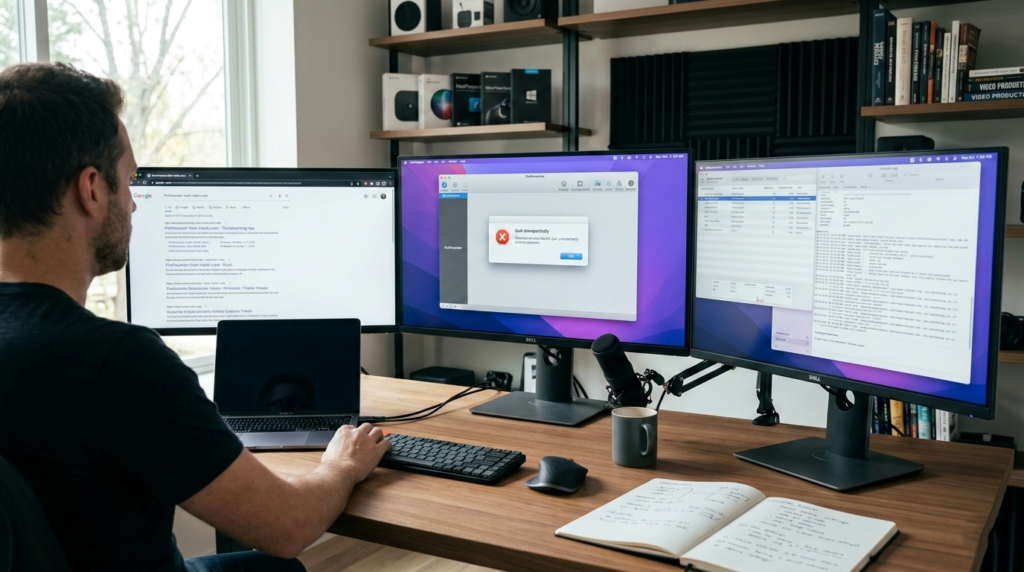
ProPresenter is widely used in churches, live events, conferences, and production environments where reliability is non-negotiable. When it works, it becomes the backbone of visual communication, handling lyrics, lower thirds, sermon slides, video playback, and multi-screen outputs with professional precision. That is why it feels especially alarming when a brand-new installation crashes the moment you open it.
If you have just installed ProPresenter and it closes instantly after launch, you are not alone. This issue surfaces regularly in both Windows and macOS environments, and it often catches users off guard because there is no prior configuration to blame. A fresh install should work out of the box. When it does not, the root cause usually lies deeper in the operating system, hardware compatibility, system permissions, or installation integrity.
This in-depth guide explores why ProPresenter crashes immediately after launching on a fresh install, what technical factors are typically involved, and how to approach troubleshooting methodically. Whether you are a volunteer tech operator, a media director, or an IT professional supporting a production environment, understanding the underlying causes will help you restore stability quickly and prevent future disruptions.
Understanding What a “Crash on Launch” Actually Means
Before diagnosing the issue, it helps to define what is happening. A crash on launch occurs when ProPresenter begins its startup process but terminates before fully loading the main interface. You might briefly see the splash screen, or the icon may appear in the dock or taskbar and then disappear. In some cases, there is no error message at all.
This behavior is different from a freeze or hang. A freeze typically means the software is running but unresponsive. A crash on launch means the operating system forcibly ends the process due to an error during initialization. That distinction matters because it points to startup dependencies rather than runtime problems.
When ProPresenter launches, it performs several checks and processes. It verifies system compatibility, loads graphics libraries, initializes hardware acceleration, creates user configuration files, and establishes media directories. If any of those early steps fail, the program can terminate immediately.
Why Fresh Installs Can Still Fail
Many users assume that crashes must be caused by corrupted libraries, legacy data, or improper shutdowns. While those are common reasons for instability in older installations, they do not apply to a brand-new setup. A fresh install removes prior configuration complexity, but it still relies heavily on the host system.
ProPresenter is a hardware-intensive application. It leverages GPU acceleration for smooth transitions, video playback, and multi-screen rendering. It interacts closely with operating system frameworks for window management, audio routing, and media encoding. If the system environment does not meet the required standards, the app may fail before you ever see the interface.
In most cases, immediate crashes after installation are caused by compatibility gaps rather than bugs in the application itself.
Operating System Compatibility Issues
One of the most common reasons ProPresenter crashes immediately after launching on a fresh install is an unsupported or outdated operating system. Each version of ProPresenter is built to function within specific OS frameworks. When those frameworks change, older operating systems may lack required libraries or security permissions.
On macOS, system updates often introduce changes to graphics APIs such as Metal, as well as sandboxing and security controls. If ProPresenter expects a newer API that is not present in your version of macOS, the app may attempt to call functions that do not exist. That mismatch can cause an instant termination.
On Windows, compatibility issues frequently involve build numbers rather than just the major OS version. Even if you are running Windows 10, an outdated build can lack certain runtime components required by the latest ProPresenter release. Windows also enforces security checks on signed executables, and mismatches in system policies can interfere with application launch.
Users sometimes discover that their computer technically runs the correct OS but lacks critical updates. A fully patched operating system is essential because ProPresenter depends on modern system libraries for stable execution.
Graphics Driver Conflicts and GPU Acceleration
ProPresenter relies heavily on GPU acceleration for rendering slides, text, video layers, and screen outputs. During launch, the application initializes graphics contexts and queries the system for available GPU resources. If the graphics driver is outdated or incompatible, that initialization can fail instantly.
On Windows systems, outdated NVIDIA, AMD, or Intel drivers are a frequent culprit. Even if other applications appear to function normally, ProPresenter’s advanced rendering engine may trigger errors in drivers that simpler programs never touch. The result is a silent crash during startup.
Mac users encounter similar issues when running older hardware with newer versions of ProPresenter. While macOS updates usually bundle compatible drivers, hardware that no longer supports newer Metal frameworks can struggle. If the graphics subsystem cannot initialize correctly, the operating system terminates the process.
In production environments with multiple displays, capture cards, or external GPUs, the complexity increases. ProPresenter must negotiate display resolutions and output mappings during launch. Any inconsistency in that negotiation can interrupt the startup sequence.
Code Signing and Security Enforcement Problems
Modern operating systems enforce strict code signing policies to protect users from malicious software. When ProPresenter launches, the OS verifies the digital signature of the application. If the signature is invalid, expired, or corrupted during download, the system may block execution.
In some rare cases, specific builds have been distributed with signing irregularities that caused Windows to reject the executable silently. The app appears to start and then disappears without explanation. This behavior often resembles a standard crash but is actually a security enforcement issue.
macOS also applies strict notarization checks. If the system believes the app is not properly notarized or has been modified, it may prevent execution. Gatekeeper and other security features can stop ProPresenter from launching even though the installation appears successful.
When security mechanisms interfere, reinstalling from a verified official source usually resolves the issue. Ensuring that the installer was not altered by third-party antivirus software is equally important.
Corrupted or Incomplete Installation Files
Although a fresh install suggests a clean slate, the installation file itself can be corrupted. Interrupted downloads, unstable internet connections, or aggressive antivirus scanning during installation can result in incomplete file sets.
ProPresenter requires a complete collection of internal resources to initialize properly. Missing media frameworks or library components can cause startup failure before any user interface appears. Because the error occurs so early in the process, the system may not display a helpful message.
Deleting the installer, restarting the system, and downloading a fresh copy directly from the official source can eliminate this possibility. In enterprise or church network environments, firewall policies sometimes interfere with download integrity. Ensuring a clean, uninterrupted download is critical.
User Account and Permission Conflicts
Even on a fresh install, ProPresenter creates configuration files and directories within your user profile during first launch. If the operating system restricts write permissions to those locations, the application may fail while attempting to generate its initial setup files.
On Windows, these files typically reside within the AppData directory. On macOS, they are stored inside the Library folder within your home directory. If permissions are misconfigured or the account lacks administrative privileges, the app may not complete its initialization routine.
In some cases, launching ProPresenter under a different user account resolves the crash entirely. This outcome strongly indicates a profile-level permission issue rather than a system-wide incompatibility.
Enterprise security software can also create hidden restrictions. Endpoint protection tools sometimes sandbox new applications until they are explicitly approved. If ProPresenter is blocked from writing configuration data, it may terminate immediately.
Missing System Dependencies
Certain versions of ProPresenter depend on system runtime libraries that must be present on the computer. On Windows, this may include specific Visual C++ redistributables or .NET components. While most modern systems already contain these libraries, stripped-down installations or newly built machines might not.
When required dependencies are missing, the operating system may generate an internal exception during launch. Instead of presenting a readable error message, the app simply closes. Checking Windows Event Viewer can sometimes reveal which module failed.
On macOS, dependencies are generally bundled with the OS, but running outdated versions can still cause mismatches. Ensuring that the operating system itself is up to date often resolves dependency conflicts.
Hardware Limitations and Resource Constraints
ProPresenter is designed for live production, and its system requirements reflect that. Insufficient RAM, low-performance integrated graphics, or outdated processors can cause instability even during startup.
Although a system may technically meet minimum requirements, borderline hardware can struggle when initializing graphics engines and allocating memory. If the machine is under heavy load from background applications, the startup sequence may fail.
In environments where ProPresenter is installed on laptops intended for general use rather than production, resource limitations frequently surface. Ensuring adequate RAM and GPU capability is essential for stability.
Multi-Display and External Hardware Conflicts
ProPresenter is often used in setups with multiple outputs, projectors, LED walls, and confidence monitors. During launch, the software queries connected displays and builds its output configuration.
If there is a malfunctioning cable, unstable HDMI handshake, or incompatible resolution negotiation, initialization may fail. Disconnecting external displays and launching the software on a single screen can help isolate whether display hardware is involved.
Capture cards, audio interfaces, and video routing devices may also introduce conflicts. Drivers for these devices can interfere with ProPresenter’s startup sequence if they are outdated or unstable.
Diagnosing the Crash More Precisely
When ProPresenter crashes immediately after launching on a fresh install, systematic diagnosis saves time. Reviewing crash logs is often the most revealing step. Both Windows and macOS record application crashes with detailed information about the faulting module and exception code.
If the crash log references a graphics driver file, that strongly suggests a GPU issue. If it references system libraries related to security or runtime frameworks, dependency or permission conflicts are likely. Understanding what failed allows you to address the root cause rather than guessing.
Testing under a new user account can quickly rule out profile corruption. Updating the operating system and graphics drivers should be prioritized early in the process because these factors account for a large percentage of startup failures.
Recent Trends in Software Stability and Security
In recent years, operating systems have tightened security restrictions significantly. Code signing, notarization, and runtime permission models have become more aggressive. While these measures improve safety, they also increase the chances that legitimate software may fail to launch if something is slightly out of alignment.
At the same time, graphics architectures are evolving rapidly. Transitioning from OpenGL to Metal on macOS and from older DirectX frameworks to modern APIs on Windows introduces compatibility challenges. Software like ProPresenter, which depends heavily on real-time rendering, is particularly sensitive to these changes.
As hardware manufacturers update drivers and OS vendors release patches, temporary incompatibilities can arise. Staying current with both system updates and official software releases reduces exposure to these transitional issues.
Preventing Future Launch Crashes
Once the issue is resolved, preventative measures can help ensure long-term stability. Keeping the operating system updated is essential, but updates should be tested before major events. In production environments, staging updates during off-hours reduces risk.
Graphics drivers should be updated directly from the manufacturer rather than relying solely on automatic OS updates. Maintaining sufficient free disk space and avoiding unnecessary background applications can also improve startup reliability.
Regularly verifying installation integrity by downloading updates directly from official sources prevents corruption problems. Avoiding third-party modification tools or unofficial builds protects against signing conflicts.
When to Escalate to Official Support
If ProPresenter continues to crash immediately after launching on a fresh install despite system updates, driver upgrades, and permission checks, contacting official support becomes the logical next step. Providing crash logs and system specifications accelerates the troubleshooting process.
Support teams can confirm whether a known compatibility issue exists with your specific OS build or hardware configuration. In some cases, a beta patch or minor update resolves the problem quickly.
Because ProPresenter is mission-critical in many environments, seeking professional assistance early can prevent disruptions to live services or events.
Conclusion
When ProPresenter crashes immediately after launching on a fresh install, the issue is rarely random. Startup failures typically point to deeper compatibility mismatches involving operating systems, graphics drivers, system permissions, or installation integrity. Although the problem feels urgent, especially in live production settings, it is usually solvable with systematic troubleshooting.
By verifying system requirements, updating drivers, ensuring proper permissions, and reviewing crash logs, you can identify the root cause with clarity. In most cases, the fix involves aligning the software with a fully updated and properly configured operating environment.