
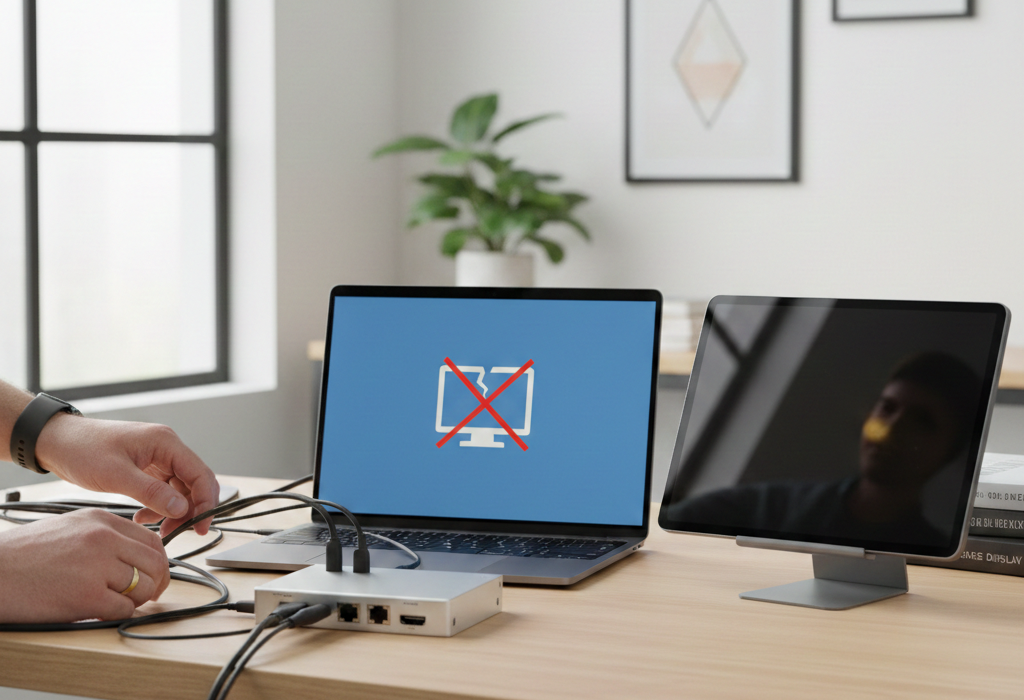
Few technical issues are more stressful than discovering your ProPresenter stage display isn’t working moments before a live service or event. The stage display is the invisible backbone of smooth presentations. It feeds musicians, speakers, and production teams with the information they need to stay synchronized. When it fails, communication breaks down, confidence drops, and the entire production can feel unstable.
Understanding how to fix ProPresenter stage display problems requires more than toggling a few settings. It involves knowing how display outputs function, how operating systems manage extended monitors, and how ProPresenter routes signals internally. This comprehensive guide walks you through the causes, solutions, and preventative strategies so you can troubleshoot efficiently and prevent future disruptions.
What Is the ProPresenter Stage Display and Why It Matters
The stage display is a dedicated output separate from your main presentation screen. While the audience sees lyrics, sermon slides, or video content on the primary output, the stage display shows contextual information such as current and next slides, clocks, timers, and notes.
This secondary output is especially critical in worship environments, corporate events, and conferences. Musicians rely on lyric cues. Speakers depend on confidence monitors to track timing. Technical directors use it to maintain flow. If the stage display stops working, performers are left guessing what comes next.
Because it operates independently from the main output, the stage display uses different configuration settings inside ProPresenter and at the operating system level. That separation is precisely why it can fail even when the primary screen works perfectly.
Understanding Why Stage Display Stops Working
When troubleshooting, the key is to think in layers. The signal must move from your computer’s graphics processor, through cables or adapters, into a physical display, and finally be assigned correctly within ProPresenter.
If any one of those layers breaks, the stage display disappears. In many cases, the problem is not a software bug but a misconfiguration. A recent system update may have reset display assignments. A cable may have loosened during transport. A new volunteer might have unknowingly changed screen mapping.
Understanding that the issue can originate from hardware, operating system settings, or ProPresenter configuration helps you troubleshoot logically instead of randomly adjusting settings.
Start With the Physical Connections
Before diving into advanced settings, begin with the simplest explanation. Physical connection problems are more common than most teams realize.
Cables can loosen slightly during setup, especially in portable environments. HDMI and DisplayPort connectors are particularly sensitive to partial disconnections. Even if the screen powers on, a weak signal can prevent proper detection by your system.
Adapters also introduce potential failure points. USB-C to HDMI adapters, older VGA converters, and low-quality splitters can interrupt signal handshakes. Testing with a known working cable or adapter often resolves the issue immediately.
It is equally important to confirm the monitor itself is functioning properly. Verify it is powered on and set to the correct input source. Sometimes the display defaults to a different input after being powered down.
Confirm Your Operating System Recognizes the Display
If the hardware appears intact, the next step is checking your computer’s display settings. ProPresenter cannot output to a screen your operating system does not recognize.
On Windows, open Display Settings and confirm the second monitor appears as an extended display. It should not be set to duplicate unless you intentionally want mirroring. Stage display requires an extended desktop so ProPresenter can assign unique content to that screen.
On macOS, navigate to System Settings and view Displays. The external screen should appear as a separate display rather than mirroring the main monitor. If it does not appear, use the detect displays function to force recognition.
If your operating system does not detect the monitor at all, the issue is almost certainly hardware-related. That may involve faulty cables, incompatible adapters, or graphics card limitations.
Ensure Stage Display Is Enabled in ProPresenter
Even if your operating system detects the display, ProPresenter must be explicitly instructed to use it.
Inside ProPresenter, navigate to the screen configuration area and verify that stage display is enabled. If it is disabled, no content will route to the external monitor regardless of operating system settings.
Once enabled, confirm the correct physical display is selected for stage output. Many systems list displays numerically, and the numbering may not match the physical position you expect. A common mistake is assigning stage display to the wrong monitor number.
If you recently rearranged monitors or connected displays in a different order, the numbering may have changed. This is a frequent cause of sudden stage display failures.
Check the Stage Display Layout Configuration
In some situations, the stage display is technically working but appears blank due to layout configuration issues.
ProPresenter allows extensive customization of stage layouts. Users can design templates that include clocks, slide previews, timers, or custom widgets. If those elements are misconfigured, scaled incorrectly, or assigned improperly, the screen may look empty.
Switching temporarily to a default stage display layout can help isolate the issue. If the default layout works, the problem lies in your custom configuration rather than your hardware or display routing.
Corrupted layout files, particularly after software updates, can also cause blank screens. Rebuilding the layout from scratch often resolves these cases.
Consider Graphics Card and Driver Issues
Modern presentation systems rely heavily on graphics processing units. If your graphics drivers are outdated or incompatible with your operating system version, display outputs may malfunction.
Windows systems in particular depend on current GPU drivers for multi-display functionality. After major operating system updates, driver conflicts can disrupt external monitor detection or signal routing.
Mac systems generally bundle graphics support with system updates, but compatibility issues can still arise, especially with external GPUs or docked laptops.
Updating graphics drivers or installing the latest stable version of your operating system can restore proper display functionality. After updating, always restart the system before retesting ProPresenter.
Evaluate Resolution and Scaling Settings
Resolution mismatches can prevent proper stage display output. If your primary monitor runs at a high resolution while the secondary display operates at a lower one, ProPresenter may struggle to render content correctly.
Standardizing both displays to a common resolution such as 1920 by 1080 simplifies compatibility. While higher resolutions may look appealing, live production environments benefit from predictable and stable configurations.
Display scaling settings can also interfere with extended displays. Excessive scaling may cause elements to render offscreen or appear distorted. Adjust scaling to moderate levels and verify stage display output again.
Examine Refresh Rates and Signal Handshake Issues
Refresh rate discrepancies can introduce flickering, blank screens, or failure to initialize a display.
Ensure both monitors use compatible refresh rates, ideally 60 Hz for standard presentation environments. If one display operates at a nonstandard refresh rate, the system may struggle to synchronize outputs.
Signal handshake problems often occur when connecting through switchers or distribution amplifiers. In those cases, temporarily bypass the intermediary hardware and connect the display directly to your computer to test functionality.
Investigate Software Updates and Version Conflicts
ProPresenter updates occasionally reset configuration preferences. After installing a new version, revisit your screen assignments and stage display settings to confirm they remain intact.
Operating system updates can also impact permissions and graphics handling. For example, macOS privacy settings sometimes require reauthorization for screen recording or display management.
If the stage display worked before an update and stopped immediately afterward, consider whether a configuration reset occurred. Reassigning the output inside ProPresenter often resolves post-update issues.
Advanced Troubleshooting for Persistent Problems
If standard fixes do not restore stage display, deeper troubleshooting may be required.
Test the display using a different computer to determine whether the monitor itself is defective. If the display works elsewhere, the issue resides within your primary system.
Create a new ProPresenter test file and enable stage display in a clean environment. This helps determine whether your existing show file contains corruption or misconfiguration.
Disconnect nonessential peripherals during testing. Docking stations and USB hubs can interfere with video output, especially when bandwidth is limited.
In complex setups involving video switchers, scaling devices, or capture cards, verify each device passes extended display signals properly. Some equipment may only support mirrored outputs.
Temporary Workarounds During Live Events
When troubleshooting during a live event, speed matters more than perfection.
If stage display refuses to function, consider duplicating the main output to the second monitor temporarily. While this does not provide the ideal confidence layout, it ensures performers at least see current content.
In certain environments, remote control apps or tablets can provide slide previews. Though not a permanent solution, these tools can prevent performance disruptions while you diagnose the issue more thoroughly after the event.
Maintaining composure and communicating clearly with performers helps reduce anxiety during technical interruptions.
Preventing Future Stage Display Failures
Prevention is far easier than emergency troubleshooting.
Standardize your setup so displays connect to the same ports in the same order every time. Changing connection order often changes monitor numbering, which disrupts stage display assignments.
Document your configuration with screenshots of operating system display settings and ProPresenter screen assignments. Having visual references allows you to restore proper settings quickly if something resets.
Schedule system updates during off days rather than immediately before major events. This gives you time to test thoroughly and resolve potential compatibility issues.
Test stage display at least thirty minutes before every event. Early detection provides breathing room for troubleshooting without disrupting rehearsal or service flow.
When to Seek Professional Support
If repeated troubleshooting fails, it may be time to consult specialized support.
Renewed Vision, the company behind ProPresenter, provides technical assistance for persistent configuration problems. Their support team can help diagnose unusual bugs or compatibility conflicts.
In large production environments, consulting an experienced AV technician may be worthwhile. Multi-display systems involving switchers, matrix routers, and external processors require deeper technical analysis.
Sometimes the cost of professional evaluation is far less than the stress and lost productivity of ongoing failures.
Building Confidence in Your Setup
Mastering stage display troubleshooting builds confidence across your production team.
When volunteers understand how displays are assigned and how extended desktops function, they are less likely to panic during unexpected issues. Knowledge transforms reactive troubleshooting into proactive management.
Documenting procedures and training team members ensures that expertise does not reside with only one person. A resilient production environment depends on shared understanding.
Conclusion
Fixing ProPresenter stage display not working problems requires systematic troubleshooting rather than guesswork. Begin with hardware connections, verify operating system recognition, confirm ProPresenter screen assignments, and then examine layout configuration, resolution settings, and driver updates. In most cases, the issue stems from misconfigured display mapping rather than catastrophic failure. With a methodical approach, you can restore functionality quickly and minimize disruption. Live events depend on seamless communication between technology and people. When your stage display works reliably, performers stay confident, presenters stay on schedule, and audiences experience smooth, distraction-free production.