
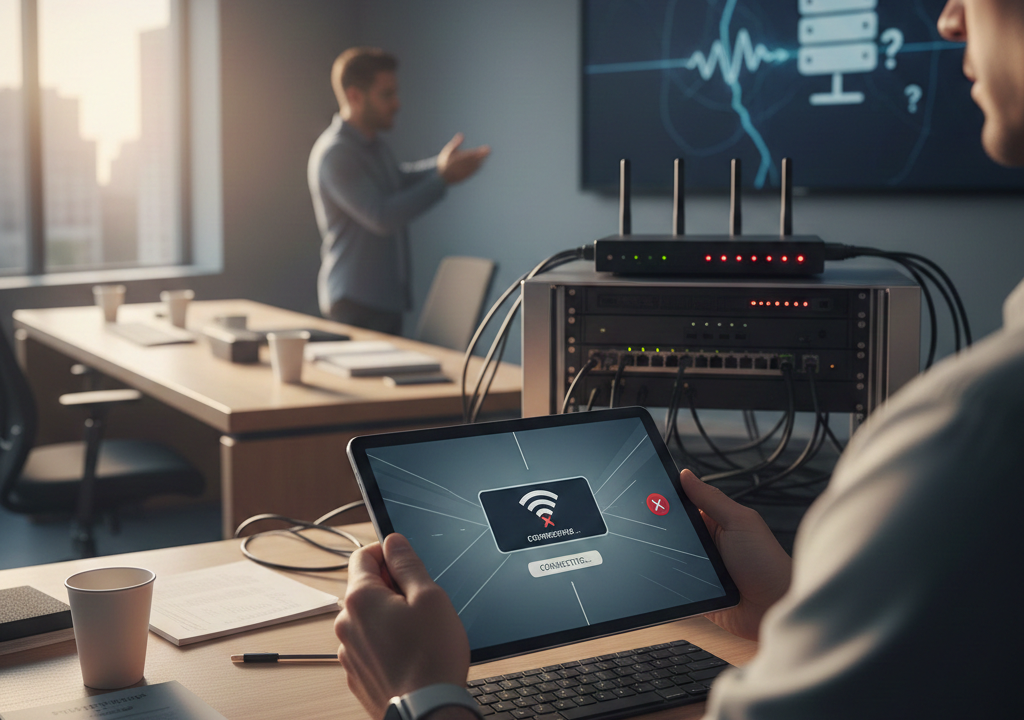
Few things are more frustrating in a live production environment than tapping your screen and realizing nothing happens. The ProPresenter Remote app is designed to make presentations seamless, giving worship leaders, event hosts, and technicians wireless control over slides and media. But when it refuses to connect, it can bring rehearsals and live events to an abrupt halt.
Understanding why the ProPresenter Remote app is not connecting is essential for anyone who depends on smooth presentations. The issue is rarely random. In most cases, it stems from network configuration, software settings, device permissions, or infrastructure limitations. This guide breaks down the root causes and offers clear, expert-level explanations so you can diagnose the problem quickly and prevent it from happening again.
Understanding How ProPresenter Remote Actually Connects
Before troubleshooting, it helps to understand how the connection works. The ProPresenter Remote app communicates with the main ProPresenter software over a local area network. Both the computer running ProPresenter and the mobile device must be connected to the same network infrastructure.
The connection relies on local network discovery. ProPresenter broadcasts its availability on the network, and the Remote app scans for that broadcast. If the devices can “see” each other, the pairing process begins. If they cannot, the app simply shows no available hosts.
This means the issue is almost always networking-related. It is rarely a bug in the app itself. Instead, the problem lies in how the devices are connected, how the router is configured, or how the operating system handles incoming connections.
The Most Common Reason: Different Networks
One of the most frequent causes of connection failure is that the devices are not actually on the same network. In many venues, especially churches and conference centers, multiple Wi-Fi networks exist. There may be a staff network, a guest network, and a production network.
If your computer is connected via Ethernet to a production VLAN while your phone is connected to a guest Wi-Fi network, they may not be allowed to communicate. Even if the Wi-Fi names look similar, network segmentation can isolate devices for security reasons.
To resolve this, confirm that both devices are connected to the exact same SSID and that the network does not isolate client devices. In many cases, simply switching the phone to the correct Wi-Fi network solves the issue immediately.
Firewall and Security Restrictions
Modern operating systems prioritize security. Both macOS and Windows include built-in firewalls that block unsolicited incoming connections. When ProPresenter tries to broadcast its availability, the firewall may block that traffic.
If the Remote app cannot detect ProPresenter, a firewall is often responsible. This is particularly common after a software update, as updates sometimes reset permissions.
The solution involves checking your firewall settings and ensuring ProPresenter is allowed to communicate on private networks. Third-party antivirus software can also interfere, especially those that include advanced network filtering features. Temporarily disabling these tools for testing can confirm whether they are the culprit.
Remote Settings Disabled Inside ProPresenter
Another overlooked cause is that Remote access may not be enabled within ProPresenter itself. The software includes specific settings that allow or restrict remote control access.
If the Remote feature is turned off, no device will be able to connect regardless of network configuration. Additionally, if a password is required, entering the wrong password will prevent pairing.
It is important to verify that remote control is enabled, that the correct password is used, and that no device limit has been reached. In shared environments, previous connections may remain active and block new ones.
Wi-Fi Isolation and Router Configuration
Many routers include a feature known as client isolation or access point isolation. This feature prevents devices on the same Wi-Fi network from communicating with each other. It is designed for public networks to enhance security.
While helpful for cafés and airports, this setting is problematic for live production environments. If enabled, your phone and computer may both access the internet but remain invisible to each other.
Accessing the router’s administrative panel and disabling client isolation typically resolves this issue. In managed networks, you may need assistance from a network administrator to adjust these settings.
The Impact of VLANs and Network Segmentation
Modern network infrastructure often uses VLANs to separate traffic. This is common in larger venues where security and bandwidth management are priorities. Each VLAN acts as a separate network, even if devices appear to be connected to the same physical hardware.
If your production computer resides on one VLAN and your mobile device on another, broadcast discovery will not function. Multicast traffic, which ProPresenter relies on for detection, may be blocked between VLANs.
In such cases, coordination with the network administrator is essential. Allowing multicast traffic or placing both devices on the same VLAN restores connectivity.
VPN Interference
Virtual Private Networks can disrupt local communication. When a VPN is active, your device may route all traffic through a remote server. This prevents local broadcast discovery from functioning correctly.
If your phone or computer has a VPN enabled, disable it temporarily and attempt to reconnect. Many users overlook this detail, especially if the VPN activates automatically on startup.
Once the VPN is disabled, the Remote app typically detects the ProPresenter host immediately.
Weak Wi-Fi Signal and Network Congestion
Even when devices are technically on the same network, signal strength and congestion can interfere with connectivity. Weak Wi-Fi signals result in packet loss and unstable communication.
In environments crowded with smartphones, tablets, and streaming devices, network congestion becomes a serious issue. The router may struggle to handle multiple connections, causing intermittent disconnections.
Improving signal strength by moving closer to the access point, adding additional access points, or upgrading to enterprise-grade networking equipment can significantly improve stability.
IP Address Conflicts and DHCP Problems
Every device on a network receives an IP address. If two devices are assigned the same address due to DHCP errors, communication fails. Although rare in small networks, this can occur in improperly configured systems.
Assigning static IP addresses to your production computer can prevent such conflicts. Reserving IP addresses within the router’s DHCP settings ensures that devices consistently receive the same address.
This approach also simplifies troubleshooting because you always know the exact IP of your ProPresenter system.
Software Version Compatibility
Occasionally, connection issues stem from mismatched software versions. If the Remote app has been updated but ProPresenter has not, compatibility issues may arise.
Developers periodically update network protocols and authentication mechanisms. Ensuring both the desktop software and the mobile app are updated to compatible versions eliminates this possibility.
If issues began immediately after an update, reviewing release notes or reinstalling the app may resolve the problem.
App Permissions on Mobile Devices
Mobile operating systems have become increasingly strict about app permissions. On iOS and Android, apps must request permission to access local networks.
If you denied this permission during installation, the Remote app cannot discover ProPresenter. This restriction does not produce obvious error messages, which makes it confusing.
Checking the app’s settings within your phone’s privacy menu and enabling local network access usually resolves detection problems.
When the App Finds ProPresenter but Won’t Connect
Sometimes the Remote app detects the host but fails during pairing. This suggests that discovery is working but authentication or communication is blocked.
Incorrect passwords are a frequent cause. Network latency can also interfere, especially if the Wi-Fi infrastructure is unstable.
Restarting both devices often clears temporary session errors. Ensuring that the connection remains on a private, stable network rather than a shared or public one improves reliability.
Random Disconnections During Use
Intermittent disconnections are often more frustrating than complete failure. These typically point to unstable Wi-Fi rather than configuration errors.
Signal interference from other electronics, overcrowded wireless channels, and aging routers can all contribute. Moving to a less congested channel or upgrading networking equipment can provide a long-term solution.
In professional environments, investing in dedicated production networking equipment pays dividends. Consumer routers are not always designed for high-density event settings.
Preventing Problems Before They Start
Preparation is the most effective troubleshooting strategy. Before rehearsals or live events, test the Remote connection thoroughly. Confirm that both devices connect quickly and maintain stability over time.
Using a dedicated production Wi-Fi network eliminates many issues. Avoid placing production systems on guest networks, and document your network configuration for consistency.
Regularly updating firmware on routers and keeping ProPresenter current ensures compatibility and security improvements are applied.
The Growing Complexity of Modern Networks
As Wi-Fi technology advances, networks become faster but more complex. Features such as band steering, automatic channel selection, and advanced security filtering can introduce unexpected compatibility challenges.
Wi-Fi 6 routers offer significant performance improvements, but their advanced management features sometimes interfere with local discovery protocols. Understanding these settings helps maintain compatibility with presentation software.
In managed networks, collaboration between technical directors and IT administrators is crucial. Production requirements must be clearly communicated to ensure proper configuration.
Understanding User Frustration and Search Intent
When someone searches for why ProPresenter Remote is not connecting, they are usually facing an urgent problem. They may be minutes away from a rehearsal or service and need a fast solution.
Most users want to know whether the issue is their phone, their computer, or their network. They are looking for reassurance that the problem is solvable and not a catastrophic failure.
Clear troubleshooting rooted in networking fundamentals provides that reassurance. Once users understand the mechanics behind the connection, the problem becomes manageable rather than mysterious.
When to Seek Professional Help
If you have exhausted basic troubleshooting and the issue persists, the problem may lie in advanced network configuration. Managed switches, VLAN rules, and firewall policies sometimes require professional expertise.
Consulting a network technician who understands multicast routing and local broadcast protocols can save significant time. In production environments, reliable connectivity is worth the investment.
Persistent problems are rarely random. They almost always stem from structural network limitations that need adjustment rather than temporary fixes.
Conclusion
The ProPresenter Remote app is a powerful tool that enhances flexibility and mobility in live production settings. When it fails to connect, the disruption feels immediate and urgent. Yet in nearly every case, the cause can be traced to predictable networking factors. By understanding how local discovery works, verifying that devices share the same network, checking firewall permissions, and ensuring router settings allow device communication, you can resolve most issues quickly. Investing time in network planning prevents last-minute stress and ensures consistent performance.