
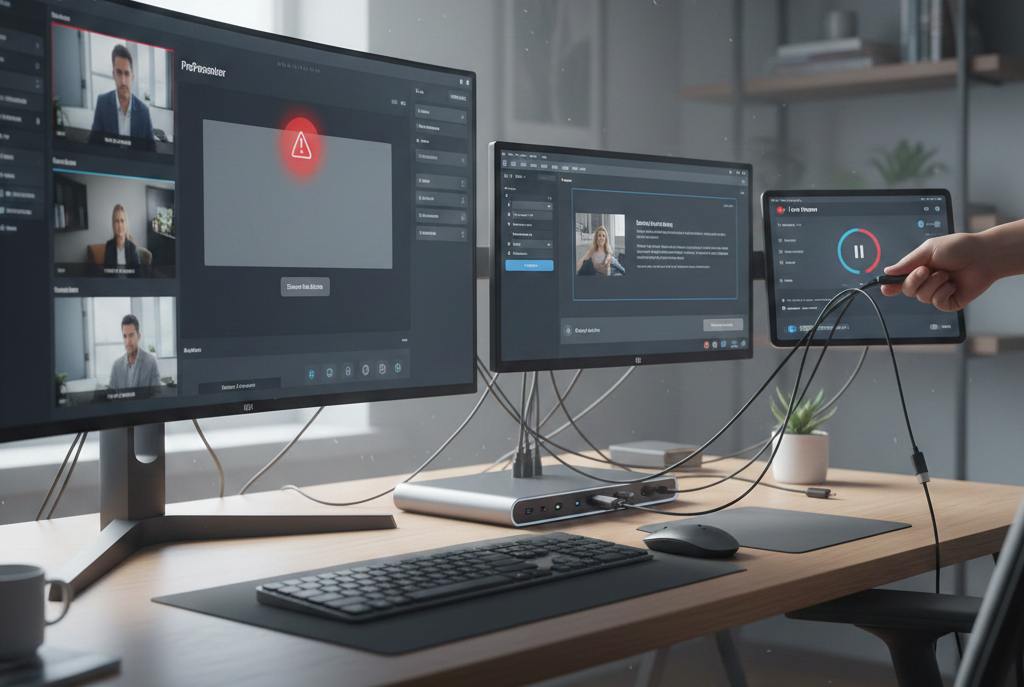
Live streaming has become an essential part of how churches, schools, event producers, and content creators communicate with their audiences. Whether it’s a Sunday service broadcast, a virtual conference, or a live worship night, reliability is everything. ProPresenter is widely trusted for displaying lyrics, slides, and media during live productions, but many users encounter a frustrating problem at some point: ProPresenter is running, the content looks fine on the operator screen, yet nothing shows up in the live stream software.
When ProPresenter fails to output to platforms like OBS Studio, vMix, Wirecast, or similar live streaming tools, it can feel overwhelming, especially when time is limited and viewers are already waiting. This issue matters because it often sits at the intersection of software settings, hardware connections, and workflow design. A small misconfiguration in any part of that chain can completely break the signal going to your stream.
This article takes a deep, practical look at why ProPresenter may not be outputting to live stream software and how to resolve it. Rather than quick fixes or generic advice, the goal here is to help you understand what’s happening behind the scenes so you can troubleshoot confidently and prevent future failures. Whether you’re new to ProPresenter or already comfortable running live productions, this guide is designed to give you clarity and control.
Understanding How ProPresenter Fits Into a Live Streaming Workflow
One of the most common reasons users struggle with ProPresenter output issues is a misunderstanding of its role in the streaming pipeline. ProPresenter is not a live streaming application by itself. It does not encode video, send data to streaming platforms, or manage bitrates. Its job is to generate visual output, such as lyrics, lower thirds, videos, or announcements, and send that output to a display or video signal.
Live stream software like OBS or vMix takes that visual output and turns it into a stream that platforms like YouTube or Facebook can broadcast. If ProPresenter is not outputting correctly, the streaming software has nothing to capture. If the streaming software is not configured correctly, it cannot receive or display ProPresenter’s output, even if ProPresenter is working perfectly.
Understanding that separation of responsibilities is critical. Most output problems are not caused by a single catastrophic failure but by a mismatch between how ProPresenter is sending video and how the streaming software expects to receive it.
How ProPresenter Sends Video to Other Software
ProPresenter can send its output in several different ways, and the method you choose has a major impact on reliability. The most traditional method involves sending video to a physical display output, such as HDMI or SDI, which is then captured by a capture card and brought into streaming software. This approach is simple and widely supported, but it relies heavily on hardware quality and correct cabling.
Another increasingly popular method is using NDI, which sends ProPresenter’s video over a local network. This eliminates the need for capture cards and physical video cables, but it introduces network complexity. Bandwidth, latency, and software compatibility all become factors that can prevent the output from appearing in your stream.
Some users also rely on virtual camera drivers or screen capture methods. These approaches can work, but they are often less stable and more sensitive to operating system updates or software conflicts. When ProPresenter output fails, the first question to ask is not what broke, but which output method is being used and whether that method is still configured correctly.
Recognizing the Symptoms of Output Problems
Output issues do not always look the same, and recognizing the specific symptom can save a great deal of troubleshooting time. In some cases, the streaming software shows a completely black screen where ProPresenter should be. This usually indicates that no signal is reaching the software at all, either because the wrong input source is selected or because ProPresenter is not sending video to that destination.
In other cases, the image appears but remains frozen. Slides change in ProPresenter, but the stream shows the same frame. This often points to refresh rate mismatches, driver issues, or capture software not receiving continuous frames.
There are also scenarios where the video appears but the aspect ratio is wrong, leading to stretched lyrics or cropped slides. This is typically caused by resolution mismatches between ProPresenter’s output settings and the canvas or input settings in the streaming software.
Audio-related issues can add to the confusion. Sometimes audio from ProPresenter is audible in the stream even when video is missing, or video appears while audio does not. This happens because audio and video often travel through different paths, and one can be configured correctly while the other is not.
Hardware-Related Causes of ProPresenter Output Failures
Hardware problems are among the most common and least glamorous causes of ProPresenter output issues. Capture cards are frequent culprits, especially when they are outdated, improperly configured, or sharing system resources with other demanding applications. A capture card may appear in your streaming software but fail to receive a signal if it does not support the resolution or frame rate being sent by ProPresenter.
Cables are another overlooked factor. HDMI cables in particular are prone to failure, especially when they are long, low quality, or frequently plugged and unplugged. A cable that works intermittently can cause ProPresenter output to drop without warning, leading users to assume the problem is software-related.
Graphics cards and display adapters also play a significant role. ProPresenter relies heavily on GPU performance, and issues can arise when the system switches between integrated and dedicated graphics. This is common on laptops, where the operating system may route displays through the wrong GPU, preventing capture software from seeing the output.
External adapters, such as DisplayPort-to-HDMI converters, can introduce additional complexity. Not all adapters handle video signals the same way, and some are not designed for continuous video capture. When ProPresenter output disappears, checking the entire physical signal chain is often the fastest way to identify the root cause.
Software Settings Inside ProPresenter That Affect Output
Even with perfect hardware, incorrect settings inside ProPresenter can prevent output from reaching your live stream software. One of the most important areas to check is the output configuration. ProPresenter allows users to assign outputs to specific displays, and it is surprisingly easy to send content to the wrong display without realizing it.
Resolution and frame rate settings must also be carefully matched to your workflow. If ProPresenter is set to output at a resolution or refresh rate that your capture card or streaming software does not support, the result is often a black or frozen image. This is especially common when upgrading displays or switching between 30 and 60 frames per second.
NDI settings deserve special attention. NDI output must be explicitly enabled in ProPresenter, and the correct output source must be selected. If ProPresenter is sending NDI but your streaming software is listening for a different NDI source, nothing will appear even though both applications are functioning correctly.
Software updates can also change default behaviors. A ProPresenter update may reset output assignments or disable certain features until they are reconfigured. This is why output issues sometimes appear immediately after an update, even if the system worked perfectly the day before.
Operating System and Driver Conflicts
Operating systems act as the traffic controllers for video signals, and conflicts at this level can stop ProPresenter output entirely. Outdated or incompatible graphics drivers are a frequent cause, particularly on Windows systems. When drivers are not optimized for the current version of ProPresenter, rendering issues or output failures can occur.
On macOS, security and privacy settings can interfere with screen capture, virtual devices, and network video. If ProPresenter or your streaming software lacks the necessary permissions, output may fail silently. This can be especially confusing because the applications appear to be running normally.
Background applications can also interfere. Software that uses virtual cameras, overlays, or system-level video hooks may conflict with ProPresenter or your streaming software. When troubleshooting, it is often helpful to close unnecessary applications and test output in a clean environment.
Streaming Software Configuration Issues
Many users assume that if ProPresenter is running correctly, the problem must be inside ProPresenter itself. In reality, streaming software configuration errors are just as common. Selecting the wrong input source is a simple mistake, but it happens frequently, especially in complex scenes with multiple cameras and media sources.
Resolution mismatches between the streaming software’s canvas and the incoming ProPresenter signal can cause scaling problems or blank outputs. If the streaming software is set to a different frame rate than ProPresenter, dropped frames or freezing may occur.
Some streaming applications lock capture devices when they are in use. If another application has accessed the capture card first, the streaming software may not be able to receive the signal. This can happen silently, without clear error messages.
Encoding settings can also create the illusion of output problems. If the streaming software is overloaded due to high bitrate or CPU usage, it may fail to render certain inputs reliably. This can make it seem like ProPresenter is not outputting when the real issue is system performance.
Network and NDI-Specific Challenges
NDI has transformed how live productions work, but it also introduces new failure points. Network congestion is one of the most common reasons ProPresenter NDI output does not appear in streaming software. If the network is handling multiple video streams, internet traffic, and other devices simultaneously, packet loss can prevent a stable signal.
Wireless networks are particularly problematic for NDI. While it may work in testing, wireless interference or signal fluctuations can cause dropouts during live use. A wired gigabit network is far more reliable for sustained video transport.
Firewall and security settings can block NDI traffic entirely. Even if ProPresenter is sending NDI output, the streaming software may never see it if network traffic is restricted. This is especially common in corporate or institutional environments with managed networks.
A Practical Troubleshooting Mindset
When ProPresenter is not outputting to live stream software, the most effective approach is methodical isolation. Instead of changing multiple settings at once, it helps to verify each link in the chain. Confirm that ProPresenter is generating output locally. Confirm that the signal reaches the capture device or network. Confirm that the streaming software can see and display that signal.
Testing with simple content can reduce variables. A static slide or test video is easier to diagnose than a complex presentation with multiple layers. Once the signal is stable, additional elements can be reintroduced.
Documentation and consistency are powerful tools. When you know which settings worked previously, it becomes much easier to identify what changed. Many experienced operators keep screenshots or written records of their working configurations to speed up recovery when something breaks.
Preventing Output Problems in Future Streams
Reliability in live streaming is rarely about finding a single perfect setting. It is about building a workflow that is predictable and well understood. Keeping software and drivers up to date is important, but updates should be tested well before live events. Last-minute changes are one of the most common causes of output failures.
Standardizing resolutions and frame rates across all devices reduces compatibility issues. When every part of the system speaks the same technical language, fewer things can go wrong. Using high-quality cables, reliable capture devices, and wired networks may cost more upfront, but they pay for themselves in reduced stress and downtime.
Having a backup plan is also essential. Whether that means a second computer, an alternate output method, or pre-rendered slides, redundancy can turn a potential disaster into a minor inconvenience.
Conclusion
When ProPresenter is not outputting to live stream software, the problem is rarely mysterious, even if it feels that way in the moment. It is almost always the result of a broken connection, mismatched settings, or misunderstood workflow. By understanding how ProPresenter interacts with hardware, operating systems, networks, and streaming software, you gain the ability to troubleshoot calmly and effectively. Live streaming will always involve technical complexity, but it does not have to involve constant uncertainty. With a clear grasp of ProPresenter’s output mechanisms and a disciplined approach to configuration and testing, you can build a setup that performs reliably week after week.