
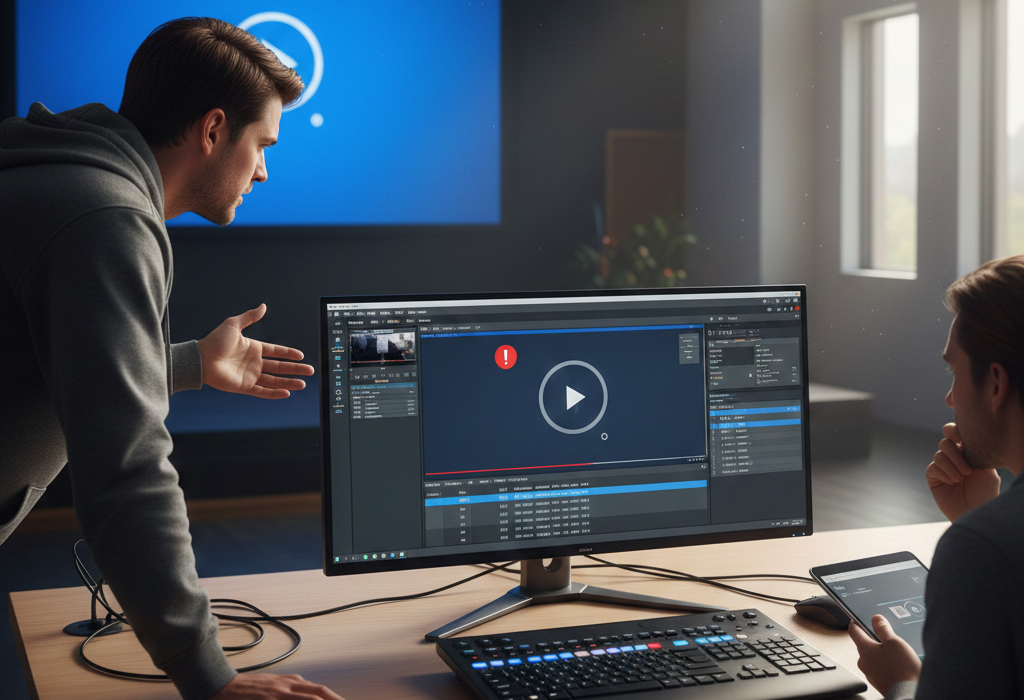
Video playback is a fundamental part of modern presentations, especially in environments like churches, conferences, concerts, and corporate events. ProPresenter is one of the most popular presentation tools used by audiovisual professionals and volunteers alike because it offers powerful features for live playback of lyrics, slides, graphics, and media. Yet, one of the most frustrating issues users encounter is when video refuses to play—or plays poorly—right when it matters most.
If you’ve ever prepared a seamless worship service, keynote, or multimedia presentation only to be met with a blank screen, choppy playback, or an error message in ProPresenter, you’re not alone. Understanding why these problems occur and how to fix them can save time, stress, and even embarrassment. This comprehensive article explores the common causes, practical solutions, and best practices to ensure videos play smoothly in ProPresenter.
What This Article Covers
- Common causes of video playback issues
- Understanding video formats and ProPresenter compatibility
- System requirements and performance considerations
- Step-by-step troubleshooting
- Optimizing video for ProPresenter
- Advanced tips for live environments
- Prevention strategies and workflow recommendations
Why Video Playback Matters in ProPresenter
Video content can enhance engagement, convey emotion, and communicate complex ideas more effectively than static slides alone. Whether it’s a promotional clip, sermon illustration, or background visual loop, seamless video playback helps maintain the flow of a service or event. When video fails, it interrupts engagement and distracts from the message or experience you intend to deliver.
ProPresenter is designed to handle mixed media seamlessly—but it operates within the limitations of your hardware, video file sources, and configuration. Knowing how each of these factors impacts performance empowers you to avoid problems before they happen.
Understanding ProPresenter’s Video Playback Requirements
ProPresenter and Media Compatibility
Not all video files are created equal. ProPresenter accepts a variety of video formats, but playback stability depends heavily on codec, container, and bitrate. Simply having a recognizable file extension like .mp4 or .mov doesn’t guarantee smooth playback.
Key factors include:
- Codec: The algorithm that compresses and decompresses your video. Common codecs include H.264 and HEVC (H.265). H.264 is widely supported and typically the most reliable for live playback.
- Container: The file wrapper such as MP4, MOV, or AVI. While MP4 is very common and usually well-supported, certain combinations of codecs and containers can trigger issues.
- Bitrate: Higher bitrates improve quality but require more processing power to play back smoothly. Too high a bitrate can strain even powerful computers.
Incorrect or unsupported combinations of these can result in ProPresenter refusing to play the video, displaying black screens instead of content, or crashing altogether.
Common Causes of Video Not Playing in ProPresenter
When a video fails to play in ProPresenter, the root cause typically falls into one of these categories:
- Unsupported or incompatible video format
- Hardware limitations and performance issues
- ProPresenter configuration errors
- Operating system or driver problems
- Corrupt video files
- Network and external drive issues
Let’s explore each area in detail.
Unsupported or Incompatible Video Format
Why Format Matters
ProPresenter doesn’t support every codec or container. If you’ve downloaded footage from the internet, received it from a contributor, or rendered video from editing software with default settings, the file might not be optimized for real-time playback.
For example, videos encoded with high-efficiency codecs such as HEVC (H.265) can look great, but they demand more processing power. Older machines or entry-level laptops may struggle with these files, causing lag, dropped frames, or failure to load.
How to Identify Format Issues
You can often suspect a format issue if:
- The video shows a black screen while audio plays
- ProPresenter displays an error message upon import
- The timeline in ProPresenter fails to generate thumbnails
To check video details, use software like VLC Media Player, MediaInfo, or native OS tools to examine codec and container information.
Recommended Video Formats for ProPresenter
- Container: MP4 (most reliable)
- Codec: H.264 Main or High Profile
- Audio Codec: AAC or PCM
- Resolution: Match your output display—1080p or 4K depending on hardware
Knowing the optimal settings helps eliminate compatibility as the cause.
Hardware Limitations and Performance Problems
CPU and GPU Bottlenecks
Video playback in ProPresenter relies on both the CPU (central processing unit) and GPU (graphics processing unit). High-resolution videos, especially 4K clips, require significant processing power.
Older machines may handle simple slides and low-res content fine but choke on high-motion 1080p or 4K videos. Symptoms include stuttering, audio desync, and ProPresenter freezing.
RAM and Storage Speed
Limited RAM can cause ProPresenter to struggle when loading multiple assets simultaneously. Additionally, if videos are stored on a slow internal drive or a network share, data transfer rates may not keep up with playback demands.
Recommended practices include:
- Using SSDs (solid-state drives) for video storage
- Ensuring sufficient RAM (8GB minimum; 16GB+ recommended)
- Closing unnecessary applications to free system resources
ProPresenter Configuration Errors
Display and Output Settings
Incorrect output configurations can prevent videos from playing correctly. For instance, mismatched resolutions between ProPresenter and your display hardware can lead to black screens or distorted images.
Ensure your screen settings in both macOS/Windows and ProPresenter are aligned with your projector or LED wall resolution.
Media Cache Issues
ProPresenter caches video thumbnails and other media information for quick access. However, corrupt cache files can cause playback anomalies.
Clearing the media cache and reimporting videos often resolves strange behavior.
Operating System and Driver Problems
Outdated Graphics Drivers
Graphics drivers bridge the gap between ProPresenter and your GPU. If drivers are outdated or incompatible, video playback can suffer.
Always keep your GPU drivers up to date. Whether you use Intel, AMD, or NVIDIA graphics, regularly check for updates through your operating system or manufacturer’s software.
OS Compatibility
Apple Silicon Macs and recent Windows versions introduce new system behaviors that can affect video handling. While ProPresenter updates regularly to support current OS releases, older versions of the software might not perform well on the latest systems.
Upgrading ProPresenter and ensuring OS compatibility often resolves playback issues.
Corrupt Video Files
Even if a format is supported and your system is capable, a corrupt video file won’t play correctly. Corruption can occur during download, transfer, or editing.
Signs of corruption include:
- Videos that play in editing software but not in ProPresenter
- Artifacts or visual glitches
- ProPresenter approaching but failing to load the file
Try re-exporting the video from your editing software or replacing it with a fresh copy.
Network and External Drive Issues
If your videos reside on network drives or external USB devices, access speed and reliability become critical.
Problems arise when:
- The network is slow or unstable
- The external drive disconnects or sleeps
- Bandwidth is shared with other high-traffic devices
Copying media to a local fast drive before playback usually fixes these issues.
Step-by-Step Troubleshooting Guide
Whether you’re preparing for a live service or debugging after the fact, this structured approach helps identify and fix problems quickly.
1. Confirm Video Format Compatibility
Check codec, container, resolution, and bitrate using a media analysis tool. Convert videos to ProPresenter-friendly formats if needed.
- Preferred: MP4 container, H.264 codec
- Recommended audio: AAC
- Lower bitrates (for stability on lower hardware)
2. Test Videos Outside ProPresenter
Play the video in a different player (VLC, QuickTime) to rule out corrupt files.
3. Import Fresh Copies
Sometimes reimporting a fresh copy into ProPresenter resolves glitches related to cache or metadata.
4. Check System Resources
Open Task Manager (Windows) or Activity Monitor (macOS) to see CPU, GPU, and memory utilization during playback.
5. Update Software and Drivers
Make sure ProPresenter and your OS are up to date. Update graphics drivers for optimal performance.
6. Review Output Settings
Ensure that your display resolution and frame rate in ProPresenter match your hardware output.
7. Relocate Media
Move videos to a local SSD for faster access. Avoid running files from slow USB drives or network shares.
8. Clear Media Cache
In ProPresenter, clear the media cache to remove potentially corrupted thumbnails and metadata.
Optimizing Videos for ProPresenter
Rendering from Editing Software
When exporting videos from tools like Adobe Premiere, Final Cut Pro, or DaVinci Resolve, follow these guidelines:
- Use the MP4 container with H.264 codec
- Set a frame rate matching your presentation display (e.g., 30fps or 60fps)
- Avoid excessively high bitrates
- Test with short clips before batch exporting
Preparing Lower Reserves
Not every environment needs 4K playback. If your display hardware is 1080p, render videos at 1080p to reduce processing strain.
Background Playback Loops
For seamless looping backgrounds, encode videos in formats optimized for looping rather than high bitrate cinematic files.
Best Practices for Live Environments
Prepare Early
Load and test videos well before your event starts. Last-minute troubleshooting in a live setting adds unnecessary stress.
Create Media Playlists
Organize videos into playlists in ProPresenter so you can queue, preview, and reorder media quickly.
Duplicate Critical Media
Having backup copies of presentation videos on a separate drive or machine increases reliability if hardware fails.
Use Dedicated Playback Hardware
For high-demand environments, consider dedicated media servers or devices that offload video playback from your main ProPresenter machine.
Preventive Strategies to Avoid Playback Issues
Standardize Media Specifications
Create a media standard for your organization:
- Preferred format: MP4
- Codec: H.264
- Resolution: match display hardware
- Max bitrate: reasonable threshold based on hardware
Providing templates helps contributors avoid incompatible media.
Train Volunteers
Equip your team with knowledge of video basics relevant to ProPresenter. Understanding why playback fails empowers better preparation.
Regular Maintenance
Periodically check for ProPresenter updates, driver updates, and operating system patches that affect performance.
Conclusion
Video not playing in ProPresenter can stem from a variety of technical issues—format incompatibility, hardware limitations, configuration errors, corrupt files, or drive access problems. The key to preventing these frustrations lies in understanding how ProPresenter handles media and preparing your videos and systems accordingly. Start by standardizing your media formats, keeping software and drivers current, testing media ahead of time, and optimizing workflows for live performance. With thoughtful preparation and the troubleshooting tactics outlined above, you can minimize disruptions and ensure video content enhances rather than hinders your presentations.