
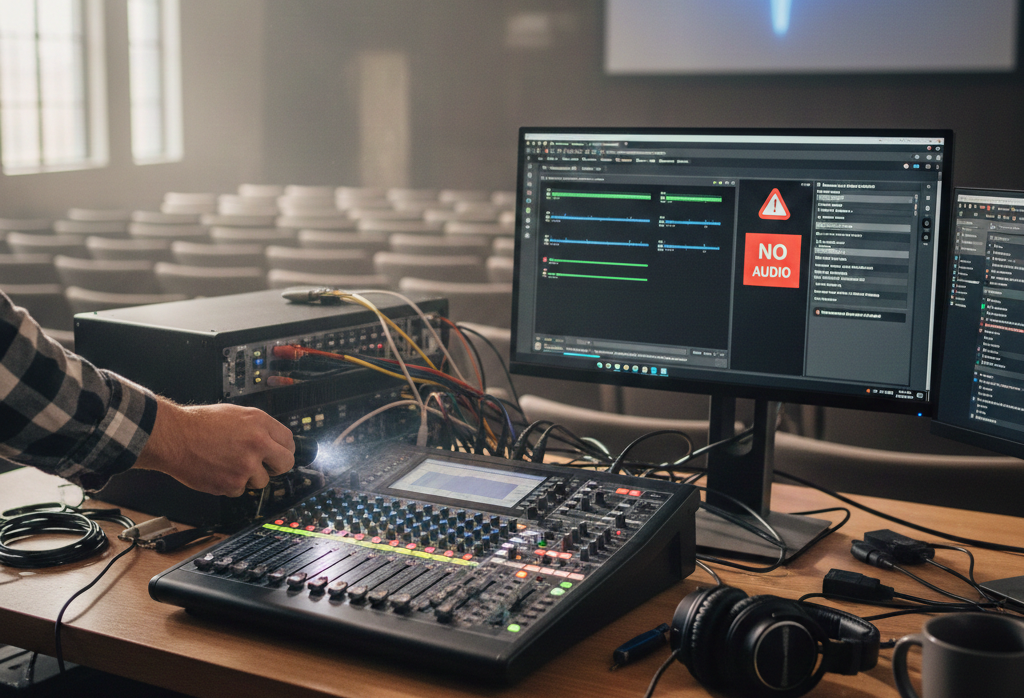
Audio issues in live presentation software can be one of the most frustrating technical problems to diagnose. When your visuals look great but the sound fails, it interrupts the flow of your event, distracts your audience, and puts pressure on your team to troubleshoot in real time. ProPresenter is a widely used presentation and worship software known for its flexibility and power, but like any complex system, audio can sometimes refuse to behave.
This comprehensive guide will walk you through practical steps and expert-level diagnostics to solve ProPresenter audio not working scenarios. Whether you’re a beginner trying to understand how audio outputs connect or an experienced technician troubleshooting a stubborn setup, you’ll find clear explanations and actionable checks that help you restore sound quickly and reliably.
Why Audio Matters in ProPresenter
Audio isn’t just a technical add-on to a presentation it’s central to the communication experience. Music, narration, ambient audio, cues, and sound effects all contribute to engagement and emotional resonance. If the audio fails, parts of your message may be lost or misunderstood.
ProPresenter integrates audio playback into its cueing, media, and live input workflows. This means a single misconfiguration can disrupt dozens of planned elements. Identifying the root cause requires checking several layers — from software settings to operating system routing and physical connections.
How ProPresenter Handles Audio
Before diving into troubleshooting, it’s helpful to understand how ProPresenter manages audio internally:
- Playback Audio: Audio that is embedded within video files or standalone audio tracks.
- Live Audio Input: Sound from microphones or instruments routed through your computer or audio interface.
- Output Routing: How audio signals are sent from the software to speakers or external mixers.
ProPresenter relies on both the host operating system (Windows or macOS) and any connected audio interfaces (USB, Thunderbolt, PCIe, etc.) to manage where and how sound is routed.
Initial Checks: Start Simple
Before delving into complex settings, always begin with the basics. These “sanity checks” often reveal obvious misconfigurations.
▶ Is Your Volume Muted or Low?
It’s easy to overlook simple volume controls. Check:
- System Volume: Verify that your computer’s master volume isn’t muted or set extremely low.
- ProPresenter Volume Sliders: In ProPresenter’s main interface, check the volume faders for your audio tracks and global output.
Listening through headphones can help isolate whether the issue is with the speakers or the software.
▶ Are Your Cables Connected Securely?
Loose cables are a common and easily overlooked source of problems. Ensure:
- All audio cables are plugged in securely at both ends.
- No connectors are damaged or corroded.
- The correct ports are used (e.g., headphone out vs. line out).
If possible, swap cables temporarily to rule out faulty wiring.
▶ Is the Correct Output Device Selected?
Operating systems often have multiple audio devices (built-in speakers, USB interfaces, Bluetooth headsets). Make sure:
- Your desired output is selected in the system sound settings.
- The same output device is selected inside ProPresenter.
A common mistake is running ProPresenter audio through a different device than intended.
ProPresenter Settings You Must Verify
When audio still isn’t working after the basic checks, it’s time to look at ProPresenter’s internal settings.
Audio Output Configuration
ProPresenter allows you to choose the output device the software uses for audio.
- Go to ProPresenter > Preferences > Audio/Video (macOS) or Edit > Preferences > Audio/Video (Windows).
- Under Audio Output Device, select the correct interface.
- Restart ProPresenter to ensure settings apply.
If you recently changed your output device (e.g., switched to a USB audio interface), the preference may default back to another device.
Sample Rate Mismatch
Audio interfaces use a sample rate (e.g., 44.1 kHz, 48 kHz). If your interface and ProPresenter disagree on sample rate, audio may fail.
- Open your audio interface’s utility or system sound settings.
- Verify the sample rate matches what ProPresenter expects.
- If in doubt, try common rates like 48 kHz.
Mismatch can result in no audio output or distorted playback.
Channel Configuration
ProPresenter lets you assign audio channels for multi-speaker setups.
- If your setup uses stereo, ensure tracks are routed to left and right channels correctly.
- For multi-zone or surround systems, check channel assignments carefully to ensure audio isn’t sent to silent outputs.
Misrouted channels can make it seem like audio isn’t working when it’s simply playing through a different, unused speaker.
Operating System Audio Routing
Let’s dig deeper into system-level audio configuration, because ProPresenter depends on the OS for core routing.
macOS Audio MIDI Setup
macOS includes Audio MIDI Setup, a utility for configuring audio devices:
- Open Audio MIDI Setup from Utilities.
- Select your audio interface.
- Check the Format (sample rate and bit depth).
- Verify that the device has the correct number of channels and they’re enabled.
If your interface supports multiple configurations, ensure the one you’re using matches ProPresenter’s preferences.
Windows Sound Settings
Windows has separate controls for output in the Sound Control Panel:
- Right-click the speaker icon in the taskbar and select Sounds.
- Under Playback, choose your output device.
- Click Properties, then the Advanced tab.
- Verify sample rate and channel configuration.
On Windows, trying different sample rates in the Advanced tab can fix compatibility glitches.
Audio Interfaces and Drivers
Your audio interface sits between ProPresenter and your physical speakers, so driver issues or incompatible hardware can be critical.
USB and Thunderbolt Interfaces
Professional audio interfaces often require dedicated drivers:
- macOS: Many devices now use class-compliant drivers, but some need vendor-specific ones (e.g., MOTU, Focusrite).
- Windows: ASIO drivers are common and generally required for low-latency performance.
Ensure you install the latest drivers recommended by your manufacturer.
ASIO vs. WASAPI vs. Core Audio
Different driver models can affect how sound is routed:
- Core Audio (macOS): Apple’s native audio system.
- WASAPI (Windows Audio Session API): Windows native.
- ASIO (Audio Stream Input/Output): Professional-grade driver with low latency.
ProPresenter typically works best with the system’s native driver unless you’re using a dedicated interface that requires ASIO. Switching between driver types can sometimes resolve conflicts.
Driver Updates and Firmware
Outdated drivers or firmware can cause dropouts, silence, or errors:
- Visit the manufacturer’s website for updates.
- Ensure firmware on your audio interface is current.
- Update drivers and reboot your system.
Media File Problems
Sometimes the issue isn’t routing or output — it’s the media file itself.
Unsupported Formats
ProPresenter supports many formats, but not all codecs are equal. If a media file uses a codec that ProPresenter can’t decode:
- You’ll see no audio during playback.
- Replace or convert the file to a standard format like .mp3, .wav, or AAC.
Free tools like VLC or HandBrake can re-encode files into compatible formats.
Corrupted Files
Files that were corrupted during download or transfer can fail silently:
- Try playing the media in another player.
- If it fails there, re-export or re-acquire the asset.
ProPresenter Version and Updates
Software bugs can sometimes be the culprit.
- Check for updates within ProPresenter or on the official Renewed Vision site.
- Update to the latest version that’s compatible with your OS.
New releases often include audio fixes, improved device support, and performance enhancements that may resolve your issue.
Conflicts with Other Software
Audio conflicts can arise when multiple applications try to access the same audio device.
Close Other Audio Apps
- Quit any digital audio workstations (DAWs) like Ableton Live or Pro Tools.
- Disable audio capture from streaming or conferencing apps (Zoom, Teams).
These applications may hold exclusive control of the audio interface, blocking ProPresenter from outputting sound.
Background Services
Some system services can intercept audio:
- Volume mixers or EQ utilities.
- Bluetooth audio services that automatically connect to headsets.
Disable or temporarily turn off such services to isolate the issue.
Live Audio Inputs
If the problem involves live sound — microphones or instruments fed through ProPresenter — this introduces additional checks.
Input Device Selection
Check that your audio interface input is selected correctly:
- In Preferences, choose the correct input device.
- Assign the input channels to the appropriate tracks.
- Check gain and input levels on the interface.
Phantom Power and Physical Setup
If you’re using condenser microphones:
- Ensure phantom power (48V) is enabled on the interface.
- Verify cables and connectors (XLR, TRS) are secure.
Live input problems can masquerade as software issues when they’re really physical or gain-related.
Sync and Latency Issues
Even when audio is working, timing can be off.
- High buffer sizes can cause delay between action and sound.
- Low buffer sizes reduce latency but increase CPU load.
Adjust buffer size in your audio interface’s control panel to balance performance and stability during live use.
Advanced Troubleshooting: Logs and Diagnostics
ProPresenter can generate logs that may show errors related to audio initialization.
- Open Help > Export Log Files.
- Examine any errors that mention audio devices or drivers.
While these logs are technical, they can be helpful to support teams in diagnosing deeper issues.
When to Ask for Help
If you’ve exhausted the above steps and audio still refuses to work:
- Document what you’ve tested.
- Note your OS version, ProPresenter version, audio device, and exact symptoms.
- Reach out to official support or community forums.
Often, someone else has seen your exact symptoms and can point you directly to a solution.
Best Practices to Avoid Future Audio Problems
Once your sound is restored, take proactive steps to prevent future issues:
- Standardize equipment: Use the same audio interface and cables whenever possible.
- Test before events: Run audio checks days before live presentations.
- Keep software updated: Regular updates improve stability.
- Label devices and settings: Document your typical audio routing for quick reference.
Preparation reduces stress and gives you confidence that sound will work when it matters.
Conclusion
Audio issues in ProPresenter can come from many layers from basic volume control to complex driver conflicts. The key to diagnosing ProPresenter audio not working is a methodical approach: start with simple checks, validate software and system settings, inspect hardware connections, and only then dive into advanced configurations or logs. By understanding how the software interacts with your operating system and audio hardware, you not only fix current issues but also prevent future disruptions. If you’re preparing for critical events, build time into your workflow to validate audio early and often.